
- Sometimes clients will write in regarding a partnership with Dillards or they need us to send a "Pass Notice", which is sent by us to OpenText on their behalf
- All vendors (our clients' clients) connecting to Dillard's via Loren Data must send in a pass notice to Dillard's before sending/receiving via Loren Data.
- Dillard's IDs are listed on OpenText, and you will need to reach out to a specific email (step 3) at OpenText to initiate the Pass Notice for our client
- Dillard's uses the below IDs via Inovis when connecting to Loren Data:
Dillard’s ID via GXS 08: 6112390050
Dillard’s ID via Inovis 08: 6112391050
- Here is what a blank Dillards Pass form looks like (this is also attached if you need to have our client fill it out and return it before sending it to OpenText):
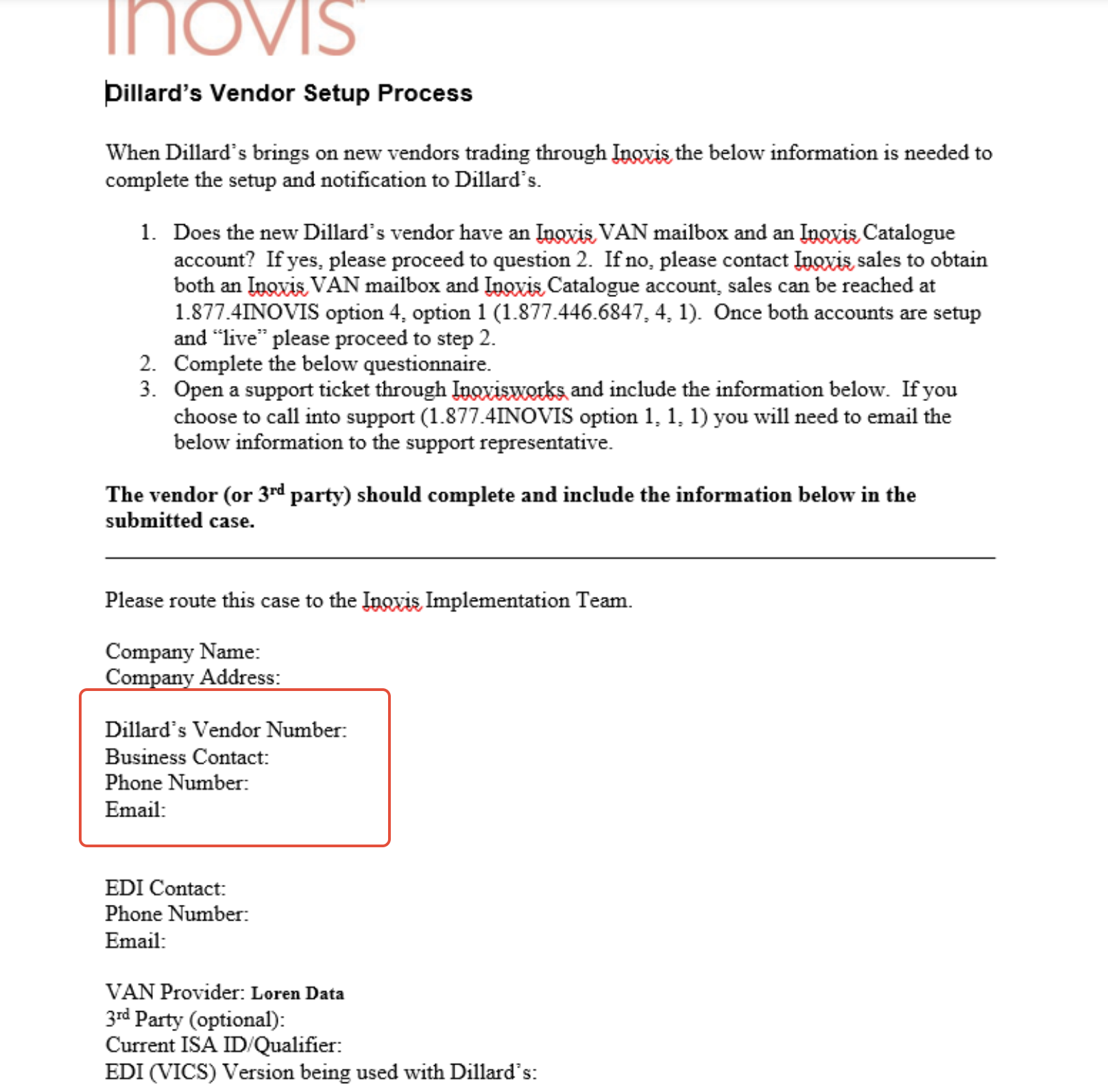
**NOTE: OpenText will not accept the pass notice without the Dillard's vendor number. Always check the pass notice before sending it off to ensure all information is listed on the notice
Steps to send off Pass Notice:
1) Ensure the client has provided a pass notice (attached). Every pass notice looks like this, just with different information listed
2) If the client asks about a Dillards partnership but does not mention or provide a pass notice, ask them if they have filled out a pass notice
If NO -> Provide them the blank pass notice (attached) and ask them to fill out and return to you
3) Once pass notice is received, you will create a "+New Email" in FreshDesk
- Subject: Dillards Pass Notice for <insert vendor's name listed on the pass notice>
- The "To:" field email will always be: communitylink@opentext.com
- Body (copy/paste this into your email with Community Link and edit as needed):
Hi Support,
Please see the attached Pass Notice for >vendor name< who will be changing their connection with Dillards today. If you have any questions or need any additional information to have this completed, please let me know. Thank you!
ISA ID/Qualifier: >Vendor's qualifier and ID<
Dillard's Vendor Number: >Vendor's vendor number<
4) Send the email, and put the new ticket number in "Related Ticket #" section of the client's ticket. **Let the client know you've reached out to the appropriate party and you will let them know as soon as you hear back from them
5) Put the client's ticket number in the "Related Ticket #" section of the OpenText ticket
6) Once the notice is submitted, Communitylink will forward the notice directly to Dillard's and copy our support.
**NOTE: When Dillards replies it is typically a brand new email. Check in unassigned for the subject line you used
7) Dillard's will make the change and inform you once completed.
8) Let the client know Dillards has confirmed the change and they are ready to begin trading
Example tickets:
1) Client provides us with Pass Notice:
https://ecgrid.freshdesk.com/a/tickets/288504
2) Client needs to fill out Pass Notice:
https://ecgrid.freshdesk.com/a/tickets/513013
3) Sometimes one of our clients' clients will reach out to us and include us in the email when it is not necessary
Our client will always be the one to initiate the Dillards Pass notice. For example, I asked our client to confirm if any help was needed on our end, which is was not:
https://ecgrid.freshdesk.com/a/tickets/506196