What is a Connector?
Definition
A Connector is a configured endpoint that Simplify uses to send files to or receive files from an external system. Connectors are set up on the Connection page and referenced by both Trigger and Action steps in a Flow.
Account Level
Connectors are created and managed at the Customer level. A Customer account login is required to set up and use connectors within flows. |
Supported Connector Types
- FTP
- SFTP
- Azure Storage
- ECGrid VAN
- Windows Service
- Webhook-based integrations
Key Notes
The Connector defines where files come from or where they are delivered. The Trigger and Action steps in a Flow determine how and when that connection is used.
Where to Find It
Navigate to: My Connections in the left navigation menu (Customer account login required).
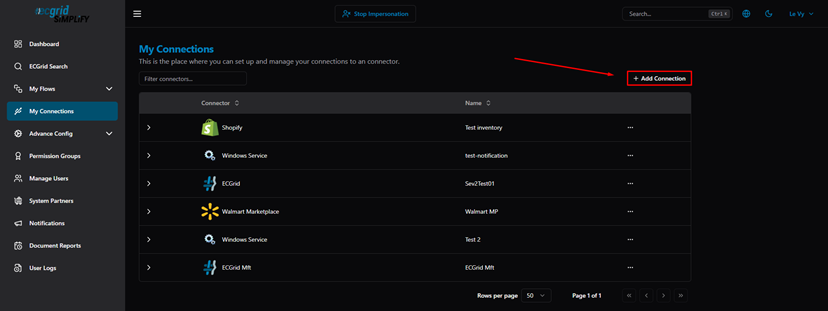
My Connections — list of configured connections
To add a new connection, click + Add Connection and select a connector type:
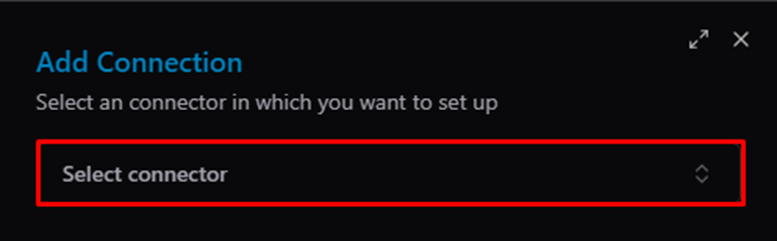
Add Connection — select connector dropdown
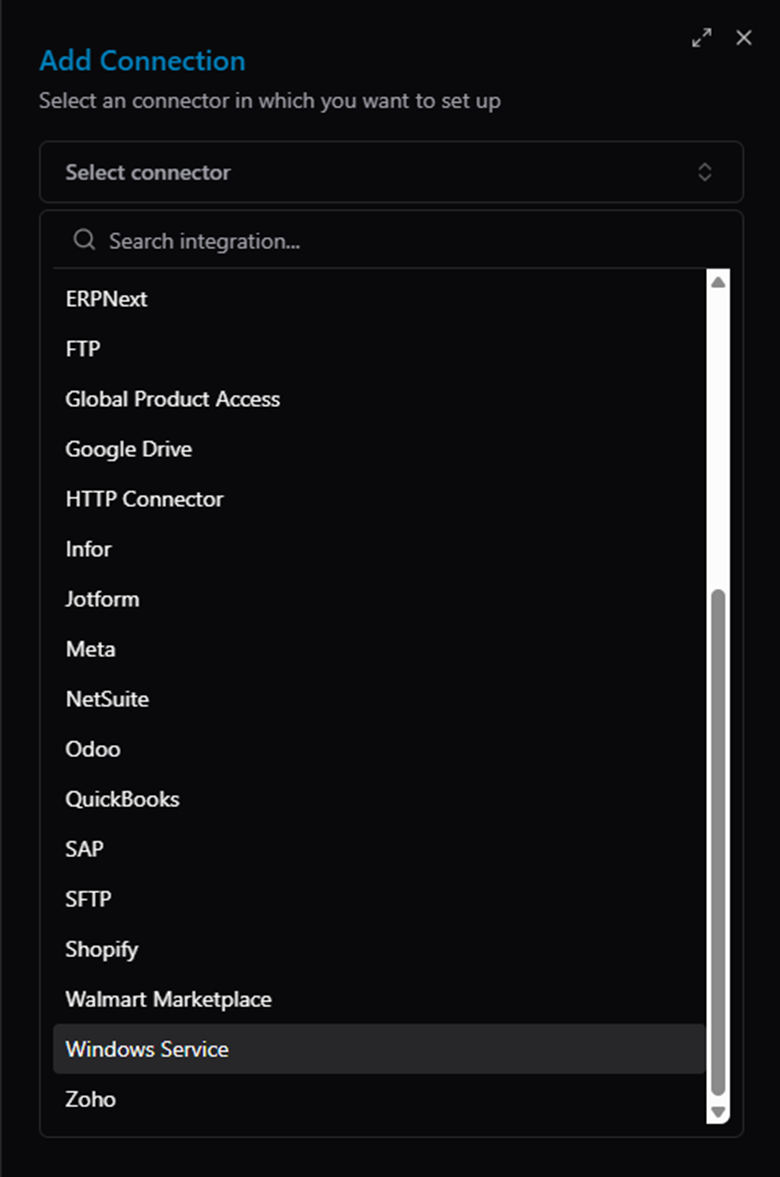
Add Connection — available connector types
After selecting a connector, fill in the connection details:
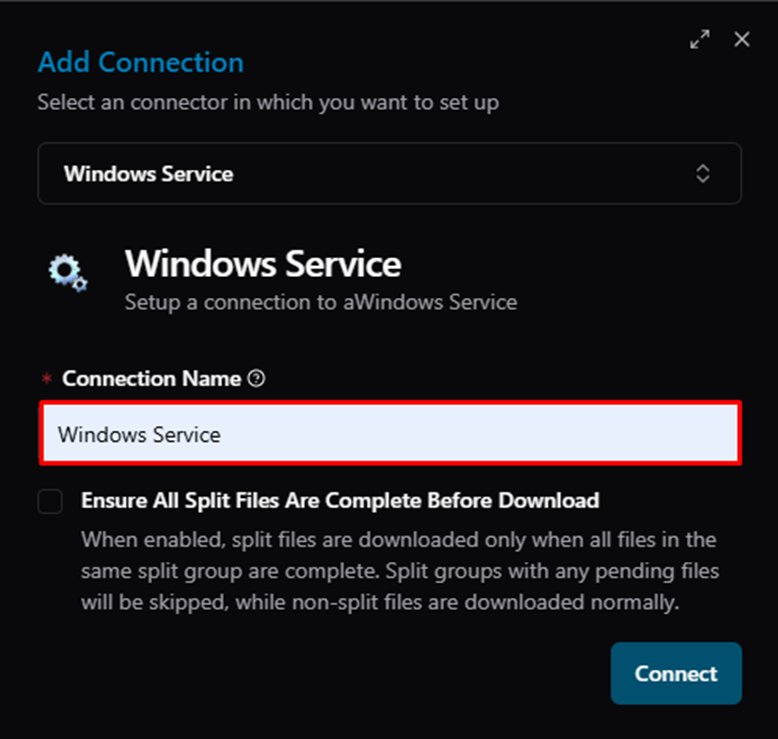
Add Connection — enter Connection Name
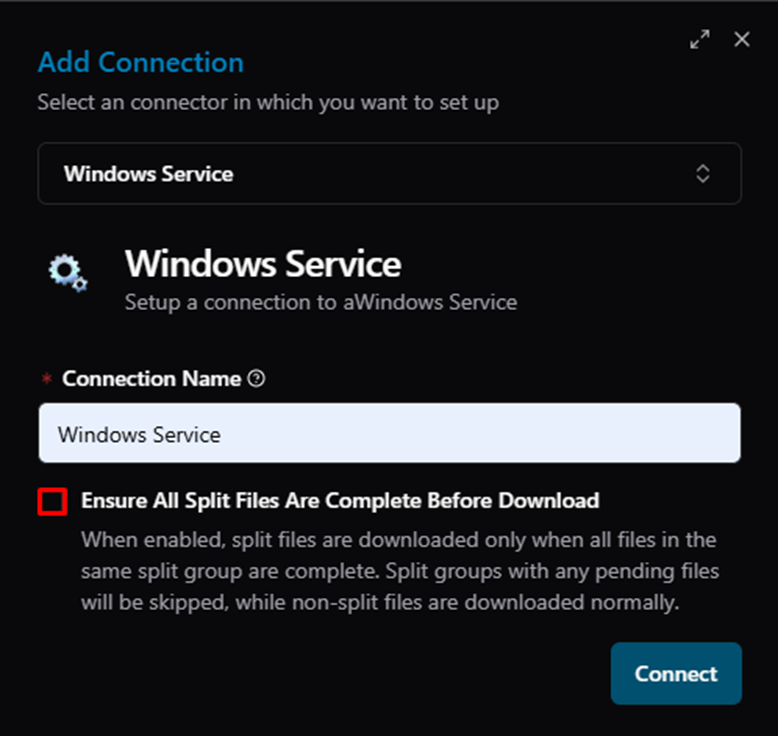
Add Connection — optional settings (e.g., Ensure All Split Files Are Complete Before Download)
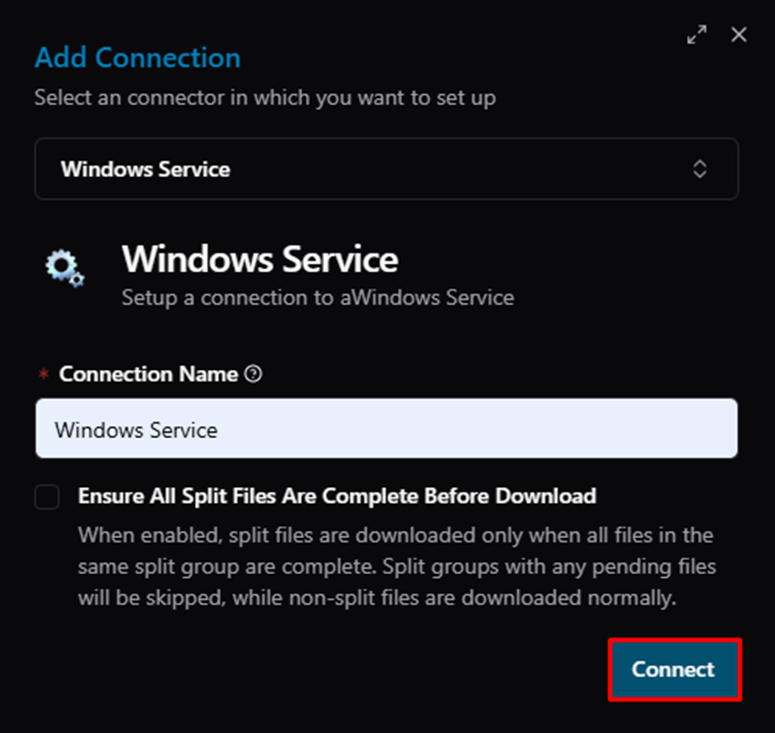
Add Connection — click Connect to save
Expanding a connection row shows all flows that use it:
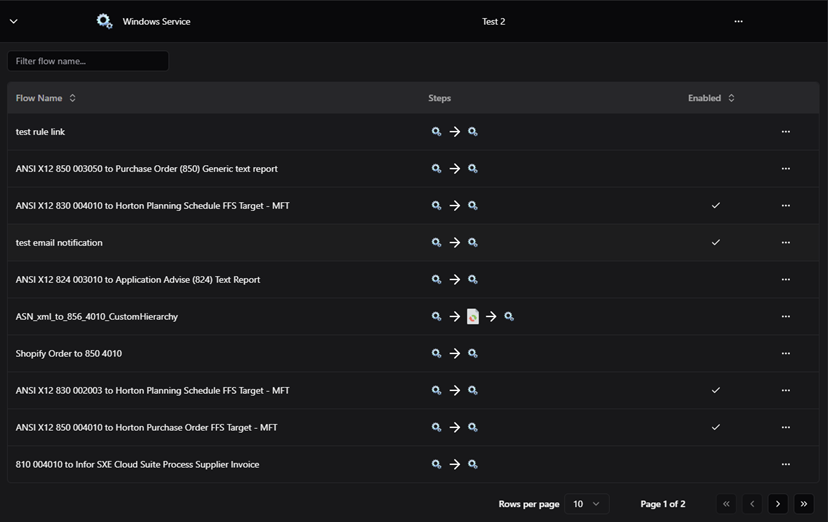
Connection Detail — flows using this connection
Click ··· on any connection to access Config or Delete options:

Connection row — actions menu (Config / Delete)
Related Articles
For more details, refer to the following articles in the Knowledge Center:
Was this article helpful?
That’s Great!
Thank you for your feedback
Sorry! We couldn't be helpful
Thank you for your feedback
Feedback sent
We appreciate your effort and will try to fix the article