How to Add a Catalog
A catalog is a curated collection of products shared with specific retailers, marketplaces, or trading partners. Catalogs let publishers control exactly which products each partner can access, ensuring accurate and efficient product data distribution across the network.
A single product can belong to multiple catalogs. A product shared with Retailer A and Retailer B simply needs to be assigned to both catalogs -- no duplication required.
Tip
Before creating a catalog, make sure the products you want to include have already been added to Global Product Access. See How to Manually Add a Product or How to Import Products via CSV if you have not done this yet.
Step 1 -- Create and Configure the Catalog
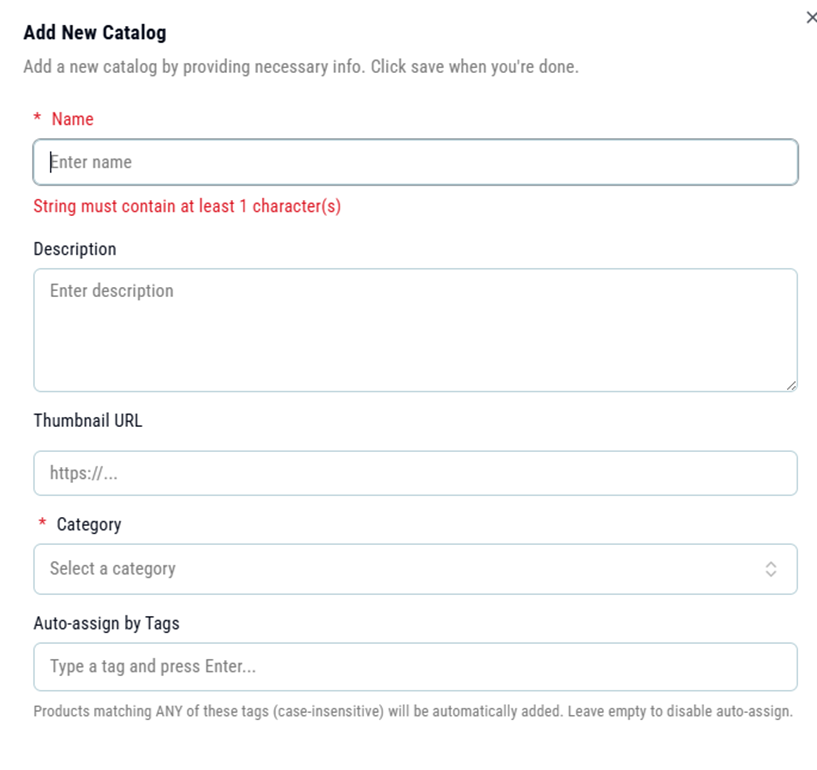
- Navigate to Catalogs. Select Catalogs from the left navigation menu, then click Add Catalog.
- Enter a name and description. Give the catalog a clear, descriptive name. If sharing with a specific partner, naming it after that partner or channel (for example, "Retailer A -- Spring 2026") makes it easier to manage as your catalog library grows.
- Set catalog visibility. Choose whether the catalog is Public or Private. See the table below for guidance on which to use.
Visibility | Description |
Public | The catalog is discoverable by any company on the Global Product Access network. Other companies can find it, browse its products, and send a subscription request. Product prices are hidden by default on public catalogs unless the "Show product prices" option is explicitly enabled. |
Private | The catalog is not searchable on the network. It can only be accessed by companies that receive a direct invitation from the publisher. Use this setting when sharing with specific partners and broader discovery is not desired. |
- Save the catalog. Click Save. The catalog is created and the catalog detail view opens. Products can now be added.
Step 2 -- Add Products to the Catalog
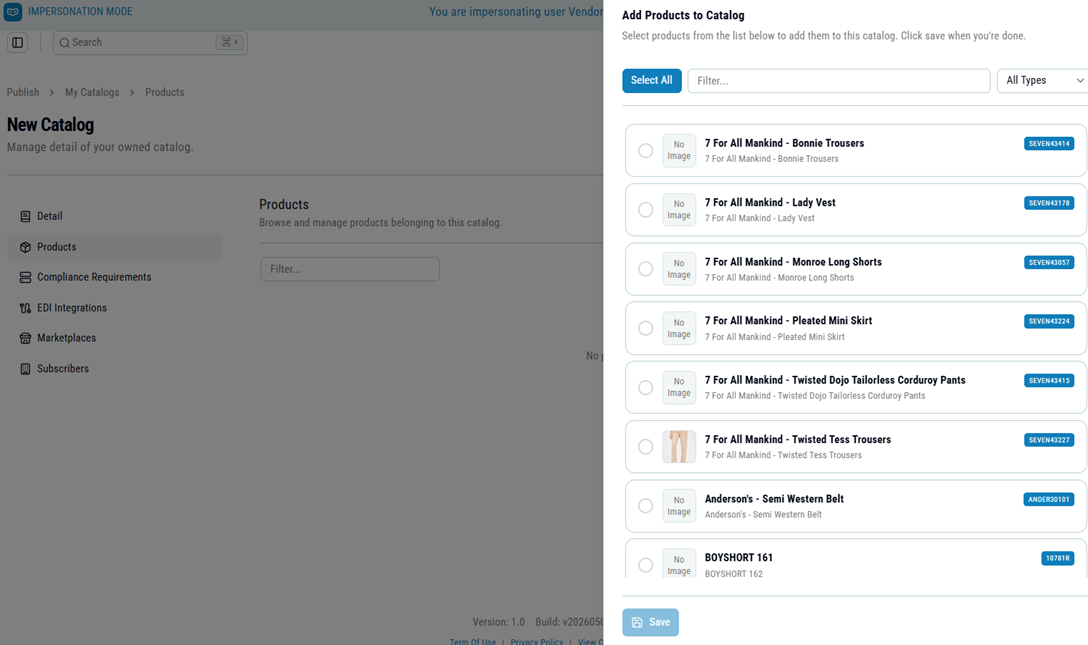
After saving, the catalog detail view opens. Products can be added from the product list or added dynamically using tags (see Step 3).
- Open the Products tab. Within the catalog detail view, navigate to the Products tab.
- Add products. Select the products to include in this catalog from the product list. A single product can be assigned to multiple catalogs without duplication.
Step 3 -- Use Tags to Add Products Dynamically (Optional)
Instead of manually selecting products one by one, tags allow products to be added to a catalog automatically. When a tag is assigned to a catalog, any product that carries that same tag is included in the catalog immediately -- no manual steps required. A catalog can have multiple tags assigned to it, and a product only needs to match one tag to qualify for inclusion.
Tip
Tags are the recommended approach for catalogs that need to stay current as products are added or updated. Rather than revisiting the catalog each time a new product is created, simply tag the product and it will appear in every catalog that shares that tag.
How Tags Work
Action | Result |
Assign a tag to a catalog | The catalog automatically includes any product carrying that tag, now and in the future. |
Add a tag to a product | The product is immediately included in every catalog that has that tag assigned. |
Remove a tag from a product | The product is automatically removed from any catalog that relies on that tag. |
Assign multiple tags to a catalog | Products matching any of the assigned tags are included. A product only needs to match one tag to qualify. |
Setting Up Tags on a Catalog
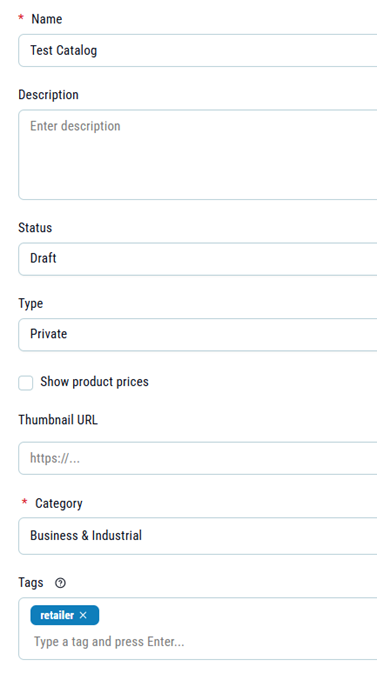
- Open the catalog. Navigate to Catalogs in the left menu and select the catalog to edit.
- Add one or more tags. In the catalog settings, locate the Tags field and enter the tags this catalog should use. Any product carrying a matching tag will be included automatically.
- Save the catalog. Click Save. All existing products with matching tags are added immediately. New products tagged in the future will be added automatically without any further action.
Tagging a Product
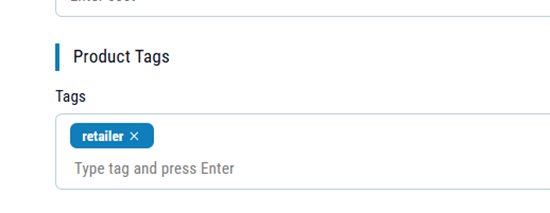
- Open the product. Navigate to Products in the left menu and select the product to edit.
- Add the tag. Locate the Tags field on the product detail screen and enter the relevant tag. Use the same tag value assigned to the catalog. Tags are case-sensitive.
- Save the product. Click Save. The product is added automatically to every catalog that has that tag assigned.
Note
Tags and manual product selection can be used together on the same catalog. Products that do not have a matching tag can still be added to the catalog manually. Products added manually will remain in the catalog regardless of their tags. Tag-based inclusion is additive -- it does not remove products that were added by other means.
Step 4 -- Apply a Compliance Engine (Optional)
Compliance engines define which product attributes are required for a specific retailer or marketplace -- such as Shopify, Walmart, or Amazon. If the catalog is intended for a partner with specific data requirements, apply the relevant compliance engine before sharing.
- Select a compliance engine. When creating or editing the catalog, select a pre-defined compliance engine from the available options. Compliance engines are configured by your system administrator.
- Review the compliance rules. Click Compliance Requirements within the catalog to see the full list of required attributes for the selected retailer or marketplace.
- Save and validate. Click Save. The system automatically validates all products in the catalog against the compliance rules and flags any products with missing required attributes.
Action Required
Address all compliance warnings before sharing or publishing the catalog. Subscribers may reject or be unable to process catalog data that does not meet their compliance requirements.
Step 5 -- Share the Catalog with Subscribers
Once the catalog is configured and products are added, it can be shared with retailers, marketplaces, or other trading partners. Two methods are available.
Method | How it works |
Inbound request | A retailer finds the public catalog on the GPA network and sends a subscription request. Explicit approval is required before access is granted. Manage pending requests from the Subscribers tab within the catalog. |
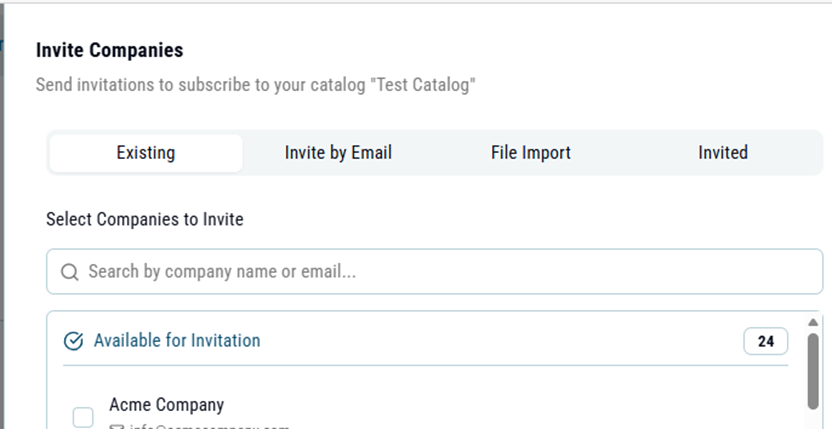
Outbound invitation | Send a direct invitation to a specific company. Click the 3-dot menu next to the Share button to invite a company already on the GPA network, or enter an email address to invite a company not yet registered. The invited company must accept before data sharing begins. |
Important
Both parties must approve the connection before any catalog data is shared. This applies to both inbound requests and outbound invitations.
Tip
Use the Share button to generate a QR code for a virtual catalog showcase. This can be shared at trade events or via email and allows prospective buyers to browse products without needing a Global Product Access account.

V202604 | © 2025–2026 Loren Data Corp. | Page 1
Was this article helpful?
That’s Great!
Thank you for your feedback
Sorry! We couldn't be helpful
Thank you for your feedback
Feedback sent
We appreciate your effort and will try to fix the article