
Publisher Quick Start Guide
V202604
Global Product Access is a product catalog network that allows suppliers and brands to publish product information once and share with multiple retailers, marketplaces and trading partners.
Global Product Access allows publishers to:
- Maintain a single source of truth for product data
- Share product catalogs with multiple partners
- Send structured catalog data via EDI
- Connect to marketplaces and other digital commerce platforms
Note Global Product Access supports JSON, XML, CSV, and EDI (832 / PRICAT) for getting product data into and out of the platform. |
Onboarding Workflow
1 — Register | 2 — Attributes | 3 — Upload | 4 — Create Catalog | 5 — Invite Subscribers |
Create your account | Define product fields | Add your products | Build catalog views | Share with retailers |
Registration and First Login
How to get access to Global Product Access and log in for the first time.
- Register your email address on Global Product Access using your service provider’s unique link, or via a service provider who will register on your behalf.
https://[yournetwork].globalproductaccess.com/
- You will receive a welcome email containing your temporary password and a link to set your permanent password. Click the link and follow the prompts to create your new password.
- Minimum 8 alphanumeric characters
- Both uppercase and lowercase letters
- At least one number (0–9)
- At least one special character (e.g., !, $, %, &, *, _)
- Return to the Global Product Access login page, enter your email address and new password, and click Log In.
Tip If the welcome email does not arrive within a few minutes, check your spam or junk folder before contacting support. |
Dashboard Overview
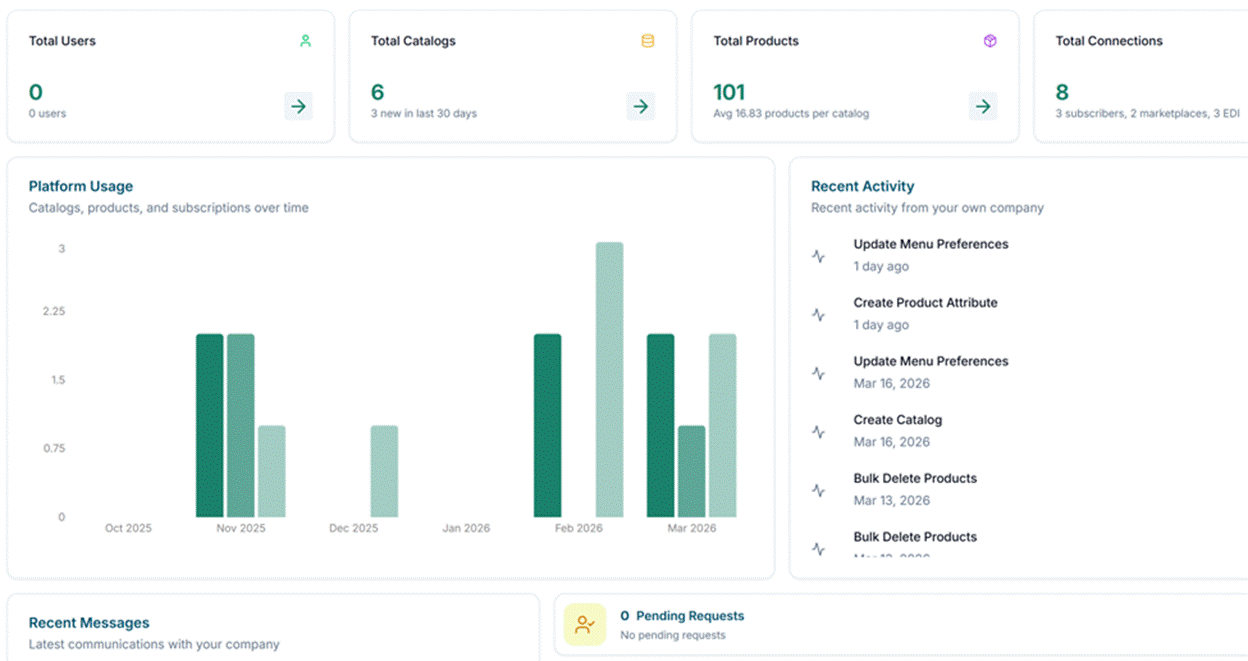
The dashboard provides an overview of your activity on the platform. From the dashboard you can access product catalog status, subscriber activity, recent messages, and data synchronization updates. The navigation menu allows you to manage products, catalogs, and integrations.
After logging in, you will arrive at your Dashboard. Summary widgets display key information such as catalog activity, subscriber counts, recent messages, and synchronization status. The main navigation menu on the left allows you to easily access all platform features.
Settings
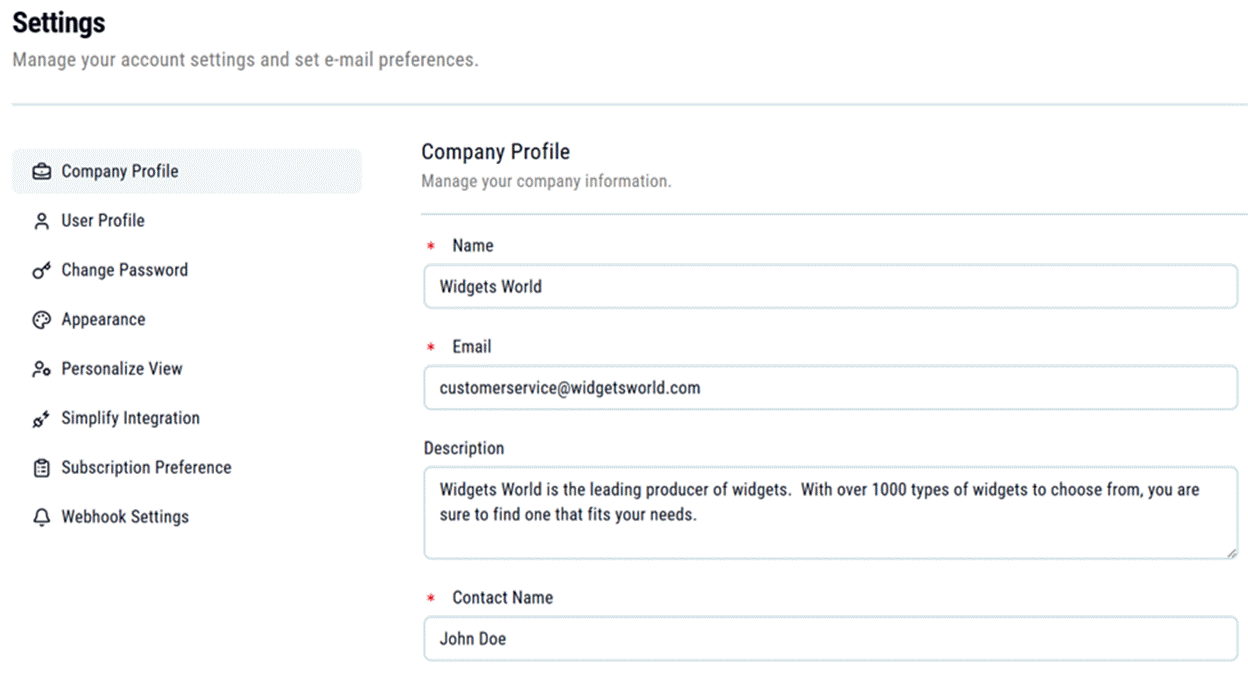
Configure your company profile, account preferences, and platform integrations. Access Settings from the main navigation menu.
Setting | Description |
Company Profile (Admin only) | Enter your company’s name, address, contact details, and logo. This information is visible to subscribers on all of your public catalogs. Keep this information accurate before publishing. |
User Profile | Update your account display name and email address. |
Change Password | Update your current account password at any time. |
Appearance | Choose your preferred font style and toggle between light and dark display modes. |
Personalize View | Global Product Access supports both publishing catalogs and subscribing to other companies’ catalogs. If you only use one of these functions, use this setting to hide the menu sections that are not relevant to your workflow. |
Simplify Integration | Enables bi-directional data connectivity between Global Product Access and Simplify. Refer to the separate Simplify Connectivity knowledge base article for full setup instructions. |
Subscription Preferences | Connect Global Product Access to your internal systems via webhooks. Refer to the separate Subscription Preferences knowledge base article for full setup instructions. |
User Roles and Authorization Levels
Global Product Access uses a tiered role structure. Your assigned role determines what features and data you can access. Publisher accounts operate at the Company Admin or Company User level.
Role | Scope | Key Capabilities |
Company Admin | Full administrator access for one company | Create/update/delete products and catalogs · Manage attributes and custom fields · CSV import · Marketplace and EDI integrations · Invite subscribers · Manage subscription statuses · Reset passwords · Configure webhooks · Generate QR codes · Export catalogs (CSV/XML/JSON) · Access company dashboard |
Company User | Standard access within one company | Create/update/delete products and catalogs · CSV import · Request/revoke subscriptions · Generate QR codes · View webhook delivery logs · Access simplified employee dashboard |
Network Admin | Manages a network of company accounts | Add Company Admins · Set network branding (logo, colors, subdomain) · Modify subscription email templates · View network-level dashboard |
Host | Internal ECGrid TechOps only | Full system-wide access. Not applicable to publisher accounts. |
Note If you need capabilities that your current role does not allow (for example, setting up integrations or managing attributes), contact your Company Admin to adjust your access or perform the action on your behalf. |
Company Admin vs. Company User
The primary differences between a Company Admin and a Company User are around configuration and management tasks. Company Users can create and manage products and catalogs day-to-day but cannot configure integrations, manage attributes, invite subscribers, or administer other users. Company Admins have full control over all platform settings and user management within their account.
Product Upload
Three methods are available for adding products to Global Product Access.
Manual Entry [Basic] | CSV Import [Bulk] | API [Advanced] |
Add products one at a time through the interface. Best for small catalogs or one-off additions. | Upload a spreadsheet using the AI-assisted import wizard. Best for initial bulk uploads or periodic batch updates. | Integrate programmatically via the GPA REST API. Best for automated or high-volume workflows. |
Manual Entry
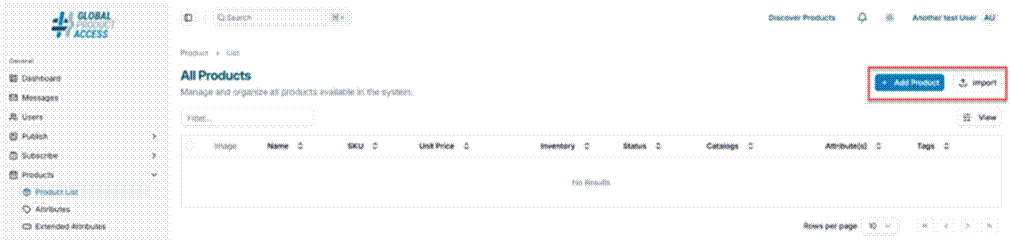
- Navigate to Products in the main menu and click Add Product.
- Fill in the primary product information (name, SKU, description, etc.) and click Save.
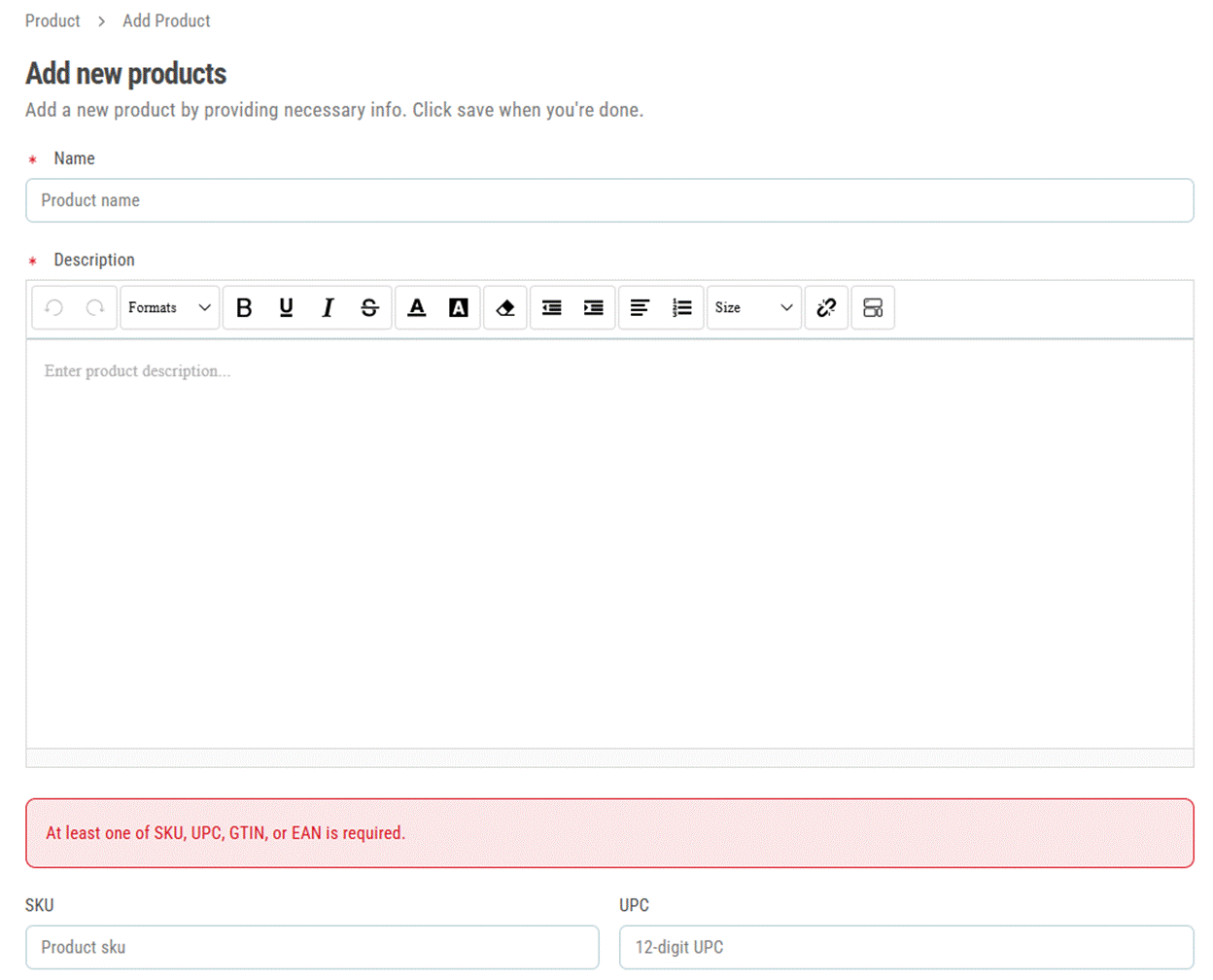
- After saving, the full product detail view opens. From here you can add additional properties, attributes, and assign the product to one or more catalogs.
- Upload product images directly or provide URLs to hosted images.
- Set a Start date on which the product becomes active and visible to subscribers. Optionally set an End date for automatic archiving.
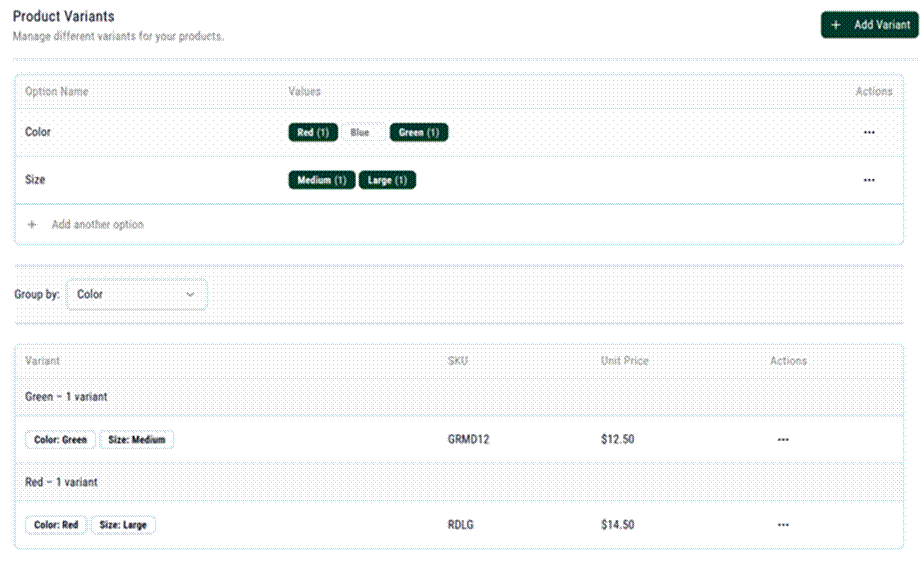
- Many products come in multiple versions, such as different sizes, colors, or styles. Instead of creating separate standalone products for each option, the platform allows you to group them using Variants.
- Use the Share button to generate a virtual product showcase that can be sent to prospective buyers. The showcase displays product images and key information without requiring the recipient to have a Global Product Access account.

CSV Import Wizard
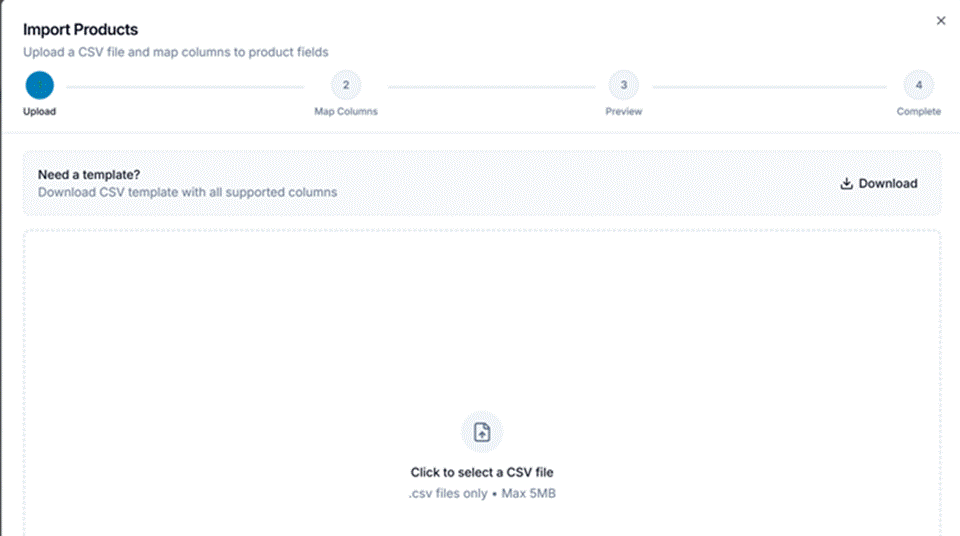
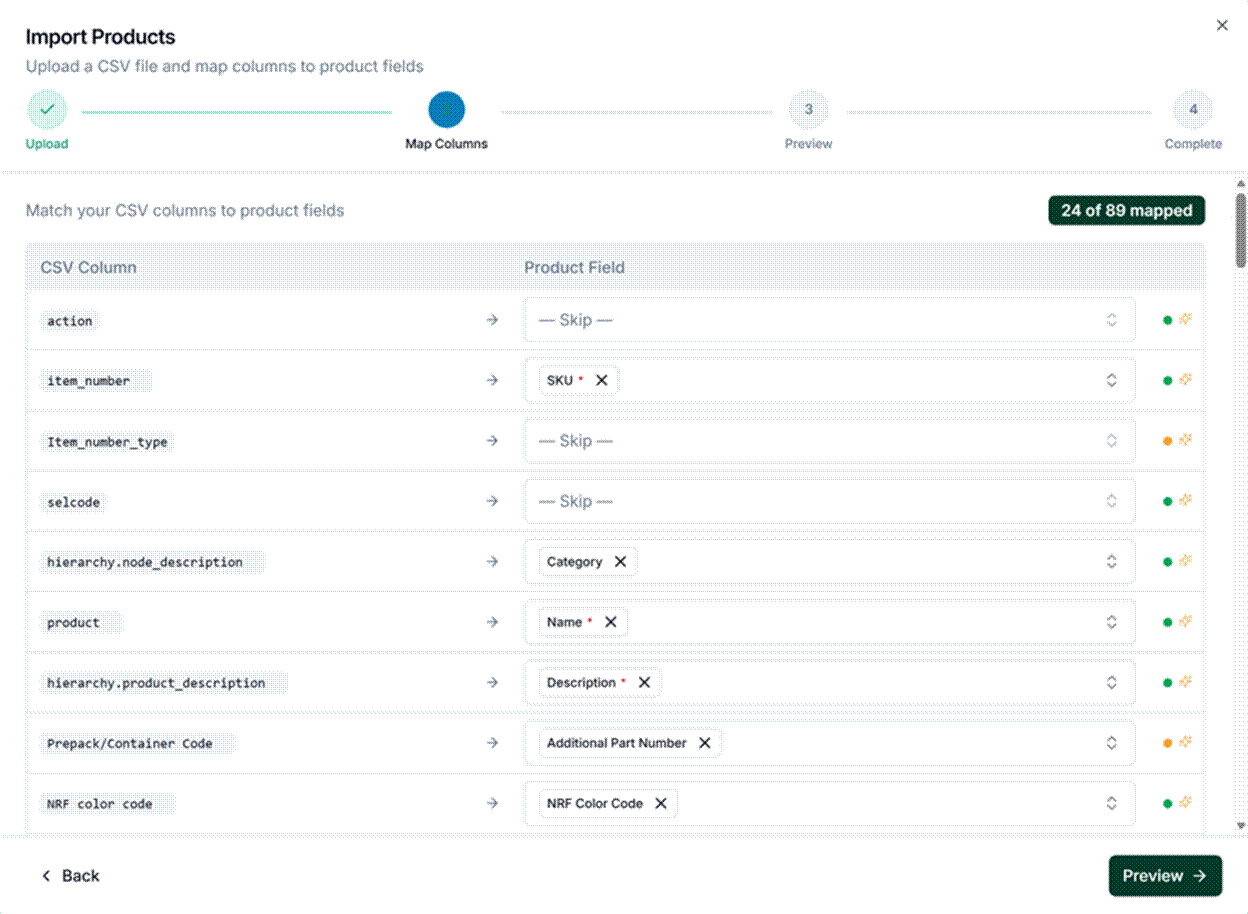
- Navigate to Products and click Import to open the CSV Import Wizard. The wizard is AI-powered so you can use your own CSV format. You are not required to use our standard import format. However, a template is available should you choose to use it.

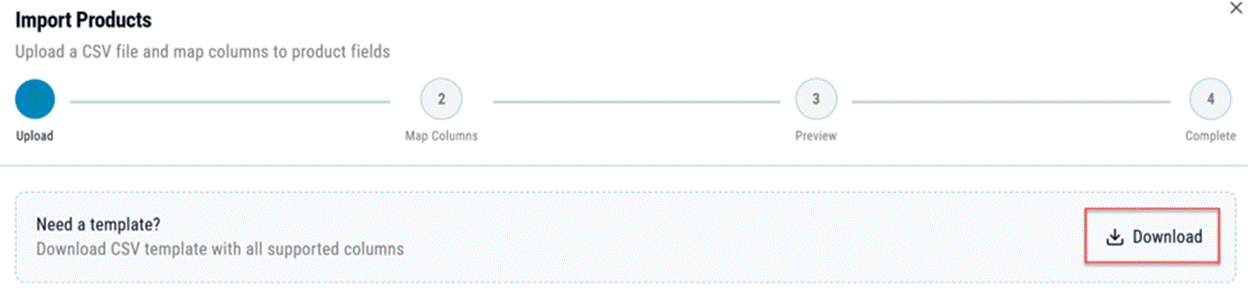
- Upload your CSV file. The wizard uses AI to automatically map your column headers to the corresponding Global Product Access fields.
- The mapping screen shows your CSV fields on the left and the GPA fields on the right. Review each mapping carefully.
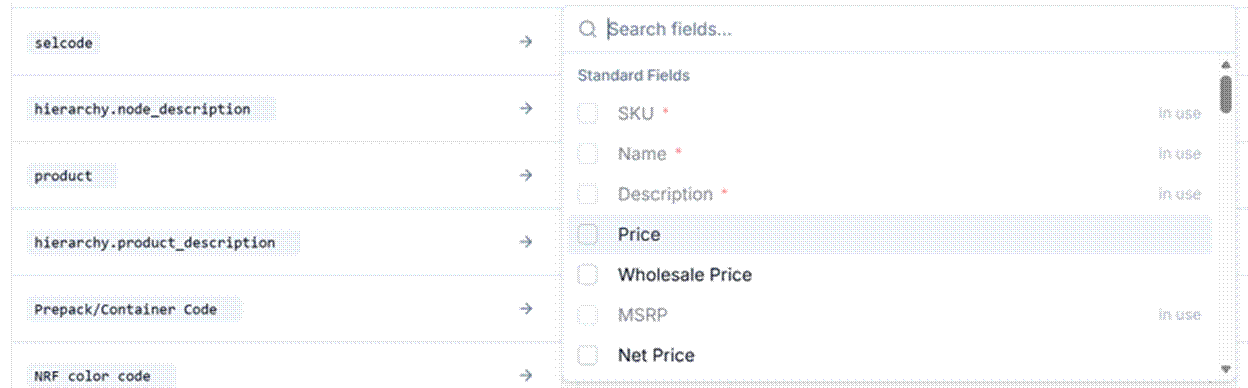
- To change a GPA field mapping, click the X next to the field name and select the correct field from the dropdown.
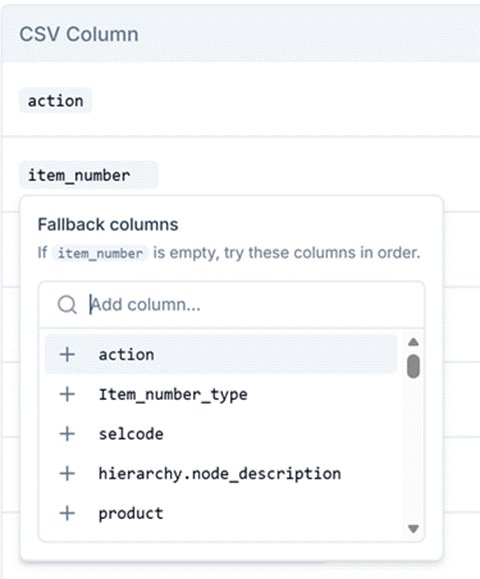
- To set a fallback source field, click the CSV field name and select a secondary option. For example: use Short Marketing Description as the primary source and fall back to Extended Marketing Description if the primary field is empty.
- Once all mappings are confirmed, click Import to complete the upload.
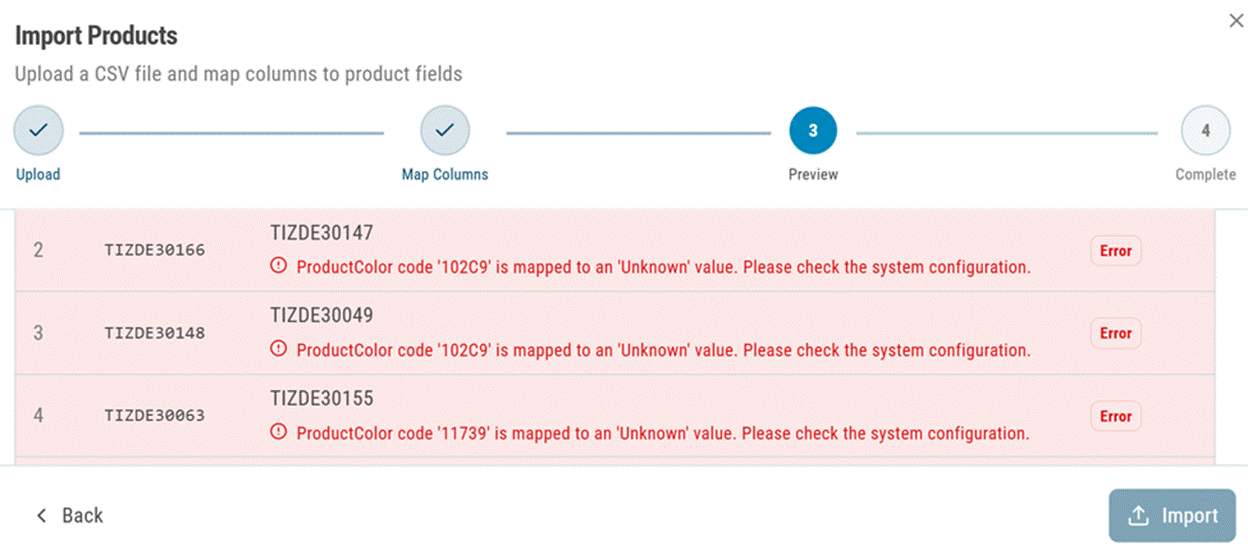
If there are any errors encountered, the wizard will display the errors during the preview screen. You can click the back button to return to the mapping screen to adjust anything as needed.
API
For automated or high-volume product loading, the Global Product Access REST API supports full product creation, update, and management operations. Refer to the API documentation for authentication details, endpoint references, and payload schemas. The interactive Swagger UI allows you to test endpoints directly in your browser.
Note API access requires Company Admin privileges. Contact your Company Admin or GPA support to obtain API credentials. |
Product Attributes
Attributes allow you to capture additional product information beyond the standard fields — such as material, dimensions, certifications, or any other data relevant to your trading partners. There are two types of attributes in Global Product Access.
System Attributes
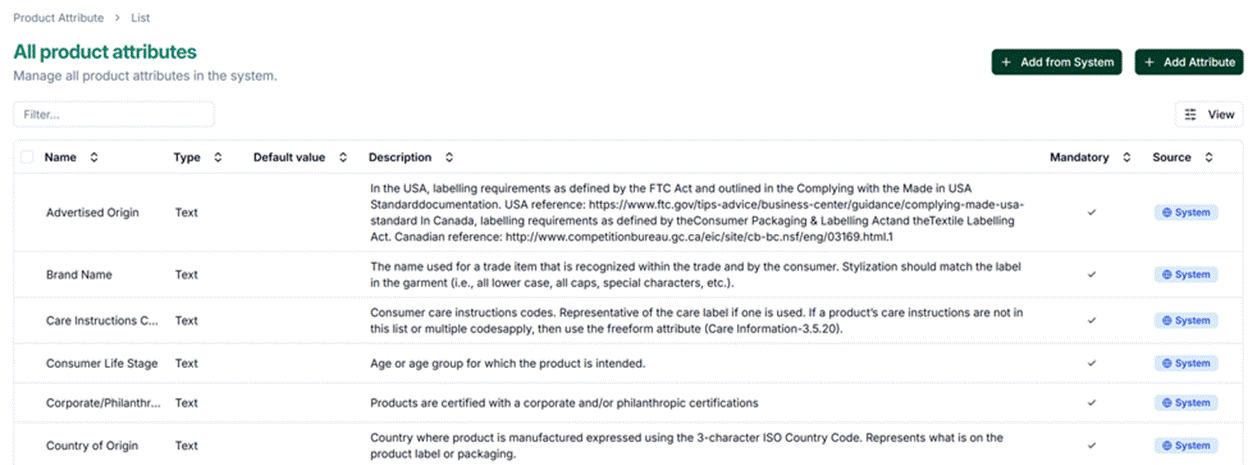
System attributes are defined by the Global Product Access network administrator and are available across the entire GPA network. They represent standardized fields that retailers and marketplaces commonly require.
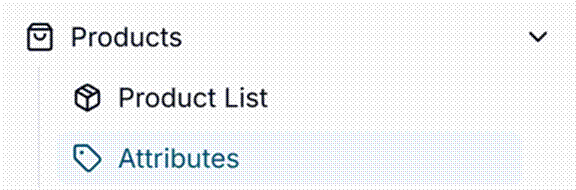
- To make a system attribute available on all products at your company level, navigate to Attributes and click Add from System. You can mark these as mandatory at the company level.
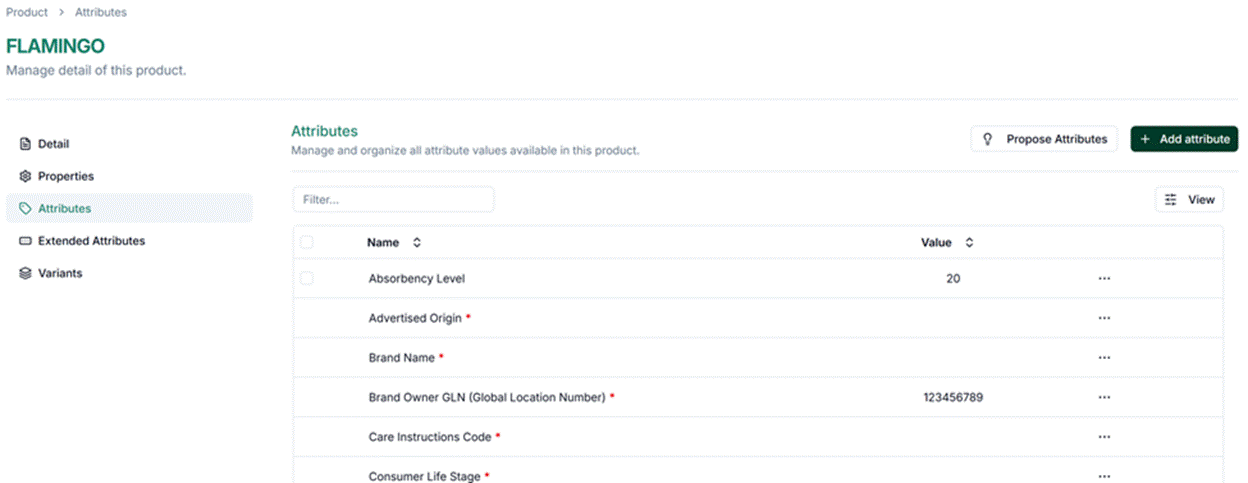
- System attributes can also be added to individual products on an ad hoc basis — useful when only certain products require a specific attribute.
Custom Attributes
Custom attributes are defined at the Company Admin level and are specific to your company. They are not visible to other companies on the network.
- To create a custom attribute, click Add Attribute and define the name, type, and whether the field is mandatory or optional.
- Custom attributes are identified by the label “Mine” in the Source column of the attributes list.
- Only Company Admins can create or modify custom attribute definitions.

Note Compliance engines (configured per catalog) may require specific system attributes for certain retailers or marketplaces. See the Catalogs section for details on compliance requirements. |
Catalogs
In Global Product Access, a catalog is a curated collection of products that a publisher chooses to share with specific retailers, marketplaces, or trading partners. Catalogs allow vendors to organize their product assortments and control exactly which products each partner can access, ensuring accurate and efficient product data distribution across the network.
Creating and Configuring a Catalog
- Navigate to Catalogs in the main menu and click Add Catalog.
- Enter a catalog name and description.
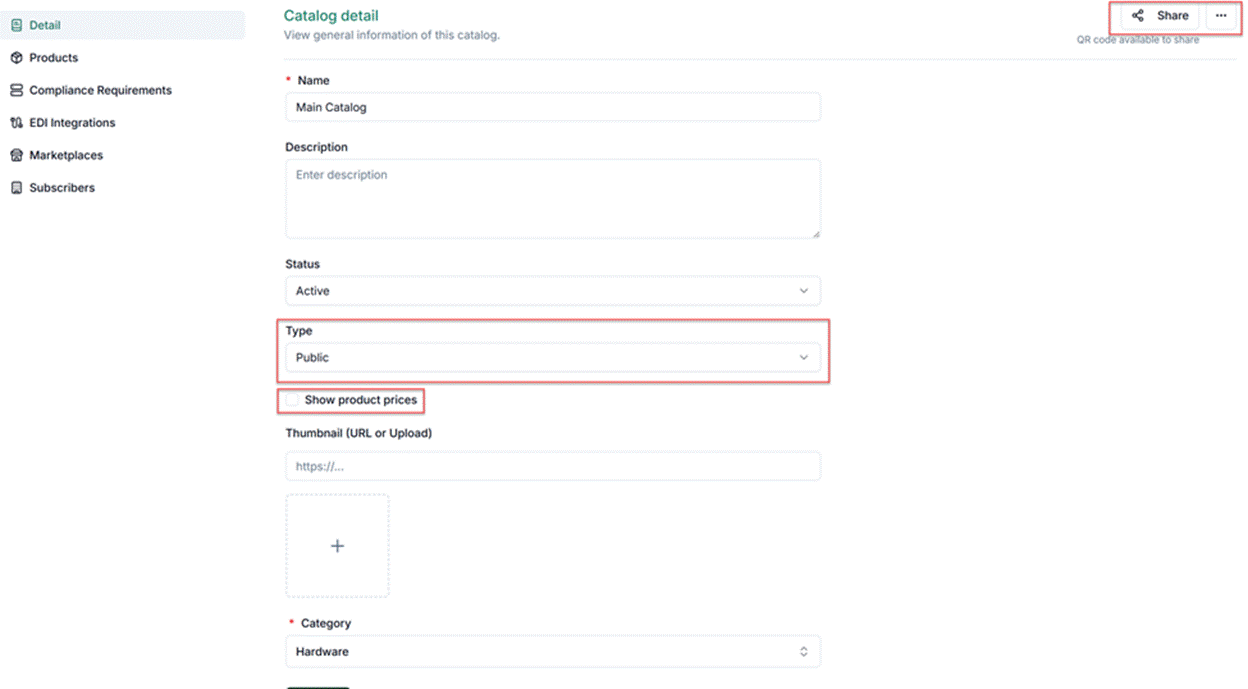
- Set the visibility: Public (discoverable by other users on the GPA network) or Private (not searchable). Product prices are hidden by default on public catalogs — the “Show product prices” option is unchecked unless you explicitly enable it.
- Save the catalog, then add products to it from the product list.
Sharing and Subscriptions
Retailers access catalogs through subscriptions. Two subscription methods exist.
Inbound Requests — Retailers discover your public catalog and request access. As the publisher, you must explicitly approve each request before access is granted.
Outbound Invitations — You invite retailers directly. Click the 3-dot menu next to the Share button to invite a company already on the GPA network, or enter an email address to invite a company not yet on Global Product Access.
- Use the Share button to generate a QR code for a virtual catalog showcase — useful for sharing product availability with prospective buyers at trade events or via email, without requiring a Global Product Access account.
Important Both parties must approve the connection before data sharing begins. All subscription relationships — whether inbound requests or outbound invitations — require explicit acceptance by both parties before any catalog data is shared. |
Compliance Requirements
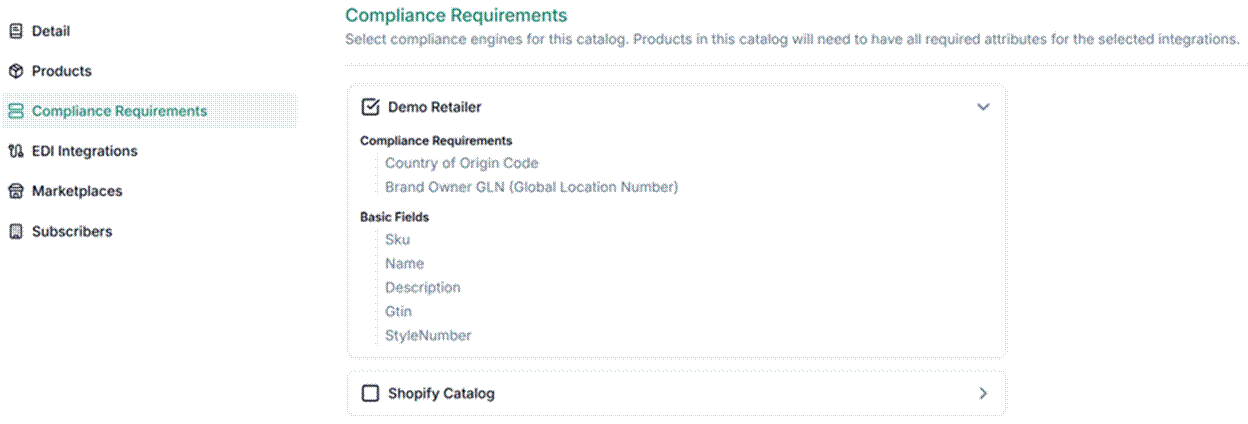
Compliance engines are configured by your system administrator and define which product attributes are required for specific retailers or marketplaces (for example, Shopify, Walmart, or Amazon). Conditional requirements are supported, meaning a field may only be required when certain other conditions are met.
- When creating or editing a catalog, select a pre-defined compliance engine from the available options.
- Click Compliance Requirements within the catalog to review the rules associated with the selected retailer or marketplace.
- Click Save — the system will automatically validate all products in the catalog against the compliance rules and alert you if any required attributes or fields are missing.
Action required Address any compliance warnings before sharing or publishing the catalog. Subscribers may reject or be unable to process catalog data that does not meet their compliance requirements. |
EDI Integrations
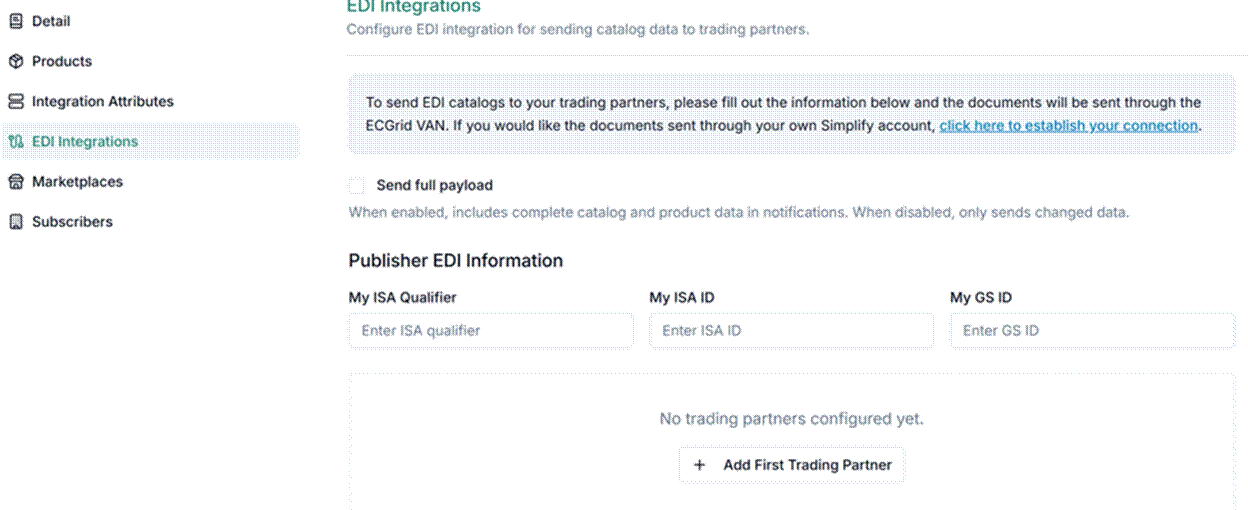
The EDI Integrations section allows you to send X12 832 (Price/Sales Catalog) and EDIFACT PRICAT EDI documents directly to retailers as required by your trading relationships. Access this section from within the catalog detail view.
Marketplaces
Connect your catalog to major marketplaces — including Shopify, Walmart, and Amazon — to push product information and inventory directly to those platforms or pull updates back into Global Product Access.
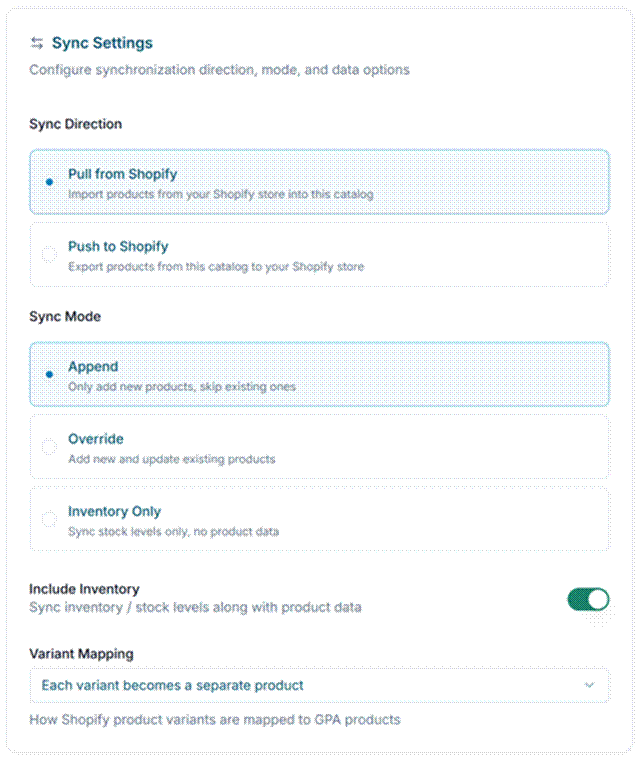
Note Marketplace connections are configured per catalog by a Company Admin. Ensure your product data meets each marketplace’s attribute and compliance requirements before pushing. |
Subscribers
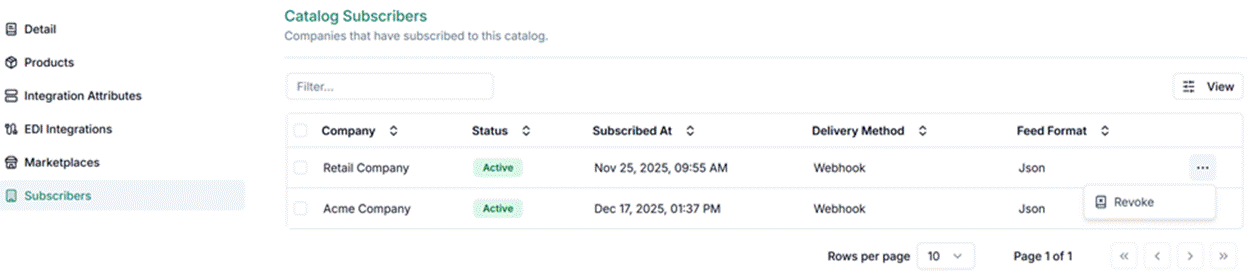
The Subscribers section within each catalog lists all companies that currently have an active subscription to that catalog through the GPA network. You can revoke any company’s access at any time from this section — access is removed immediately upon revocation.
Messages
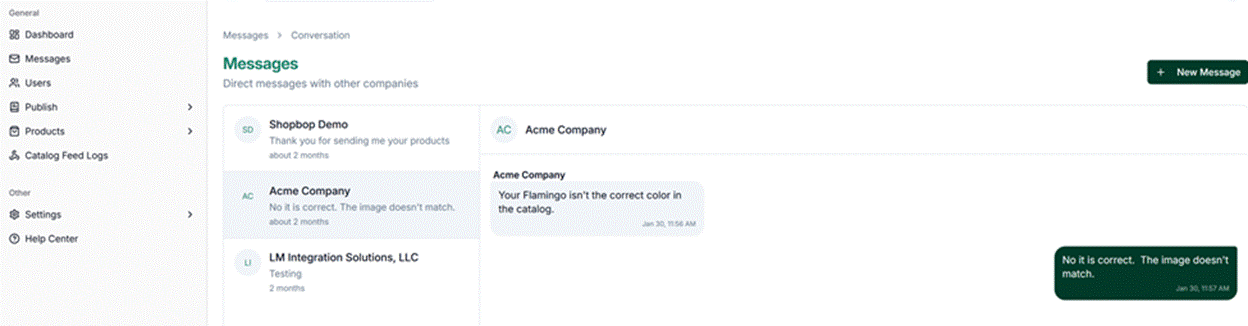
Global Product Access includes a built-in messaging system so you can communicate with subscribers and other companies without relying on your personal email client. All platform messages also trigger an email notification to the recipient company’s contacts, ensuring nothing is missed.
- Navigate to Messages in the main menu.
- Click New Message and select the company you want to contact.
- Type your message and click Send. The recipient will be notified by email and can reply directly within the platform.
Benefit All conversations are stored inside the platform, so contact information is always current and message history is always accessible — eliminating the need to search through external email threads. |
Catalog Feed Logs
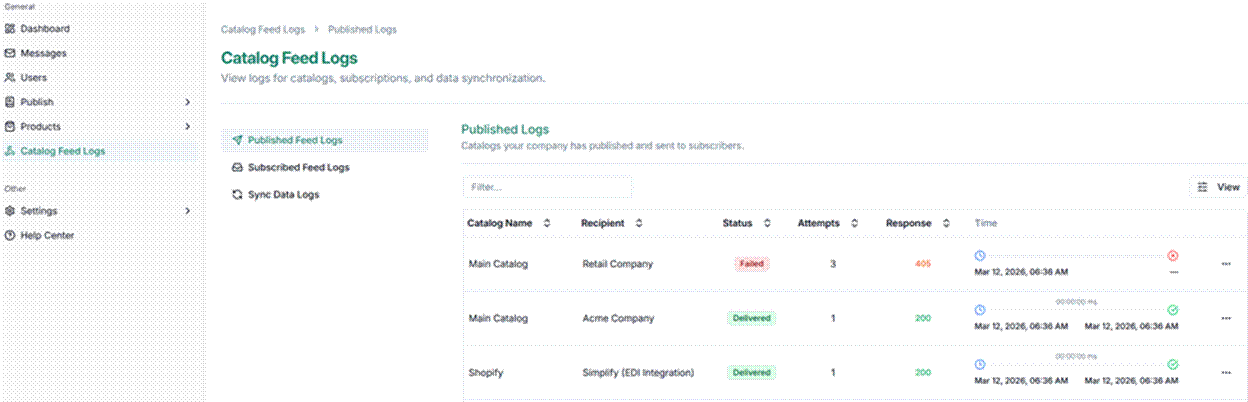
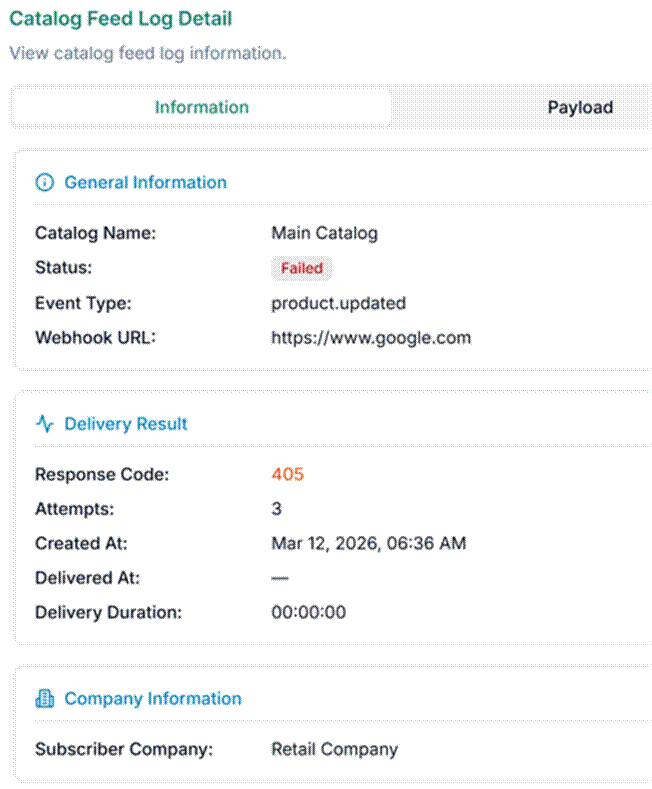
The Catalog Feed Logs section provides a complete history of all data sent to each of your catalog subscribers. It includes both successful deliveries and any errors that occurred during the process.
Use this log to:
- Confirm that specific subscribers have received the latest catalog data.
- Identify and investigate delivery errors for a specific subscriber.
- Review the exact data (file content) that was transmitted.
Sync Data Logs
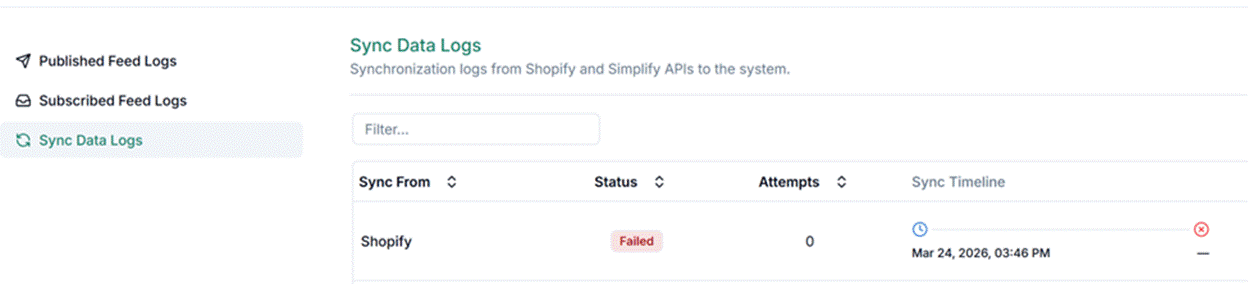
The Sync Data Logs section displays feedback from all active marketplace integrations (Shopify, Walmart, Amazon) and from the transformation engine platform. Use this log to confirm that syncs completed successfully or to identify and resolve errors.
Tip If you see sync errors: verify that your product data meets the destination marketplace’s requirements. For persistent or unexplained errors, contact your Company Admin or GPA support. |
Was this article helpful?
That’s Great!
Thank you for your feedback
Sorry! We couldn't be helpful
Thank you for your feedback
Feedback sent
We appreciate your effort and will try to fix the article