
Subscriber Quick Start Guide
V202604
Global Product Access (GPA) is a network that allows suppliers to share product catalogs with retailers and enables retailers to subscribe to and receive product data directly into their systems.
As a subscriber (retailer), you can:
- Find supplier catalogs
- Subscribe to them
- Receive product data in your system (API, EDI, or custom feed)
Start Here
1 — Register | 2 — Configure | 3 — Subscribe | 4 — Receive |
Create your account and log in | Configure Subscription Preferences (API / EDI / Custom) | Subscribe or accept invitation | Start receiving data |
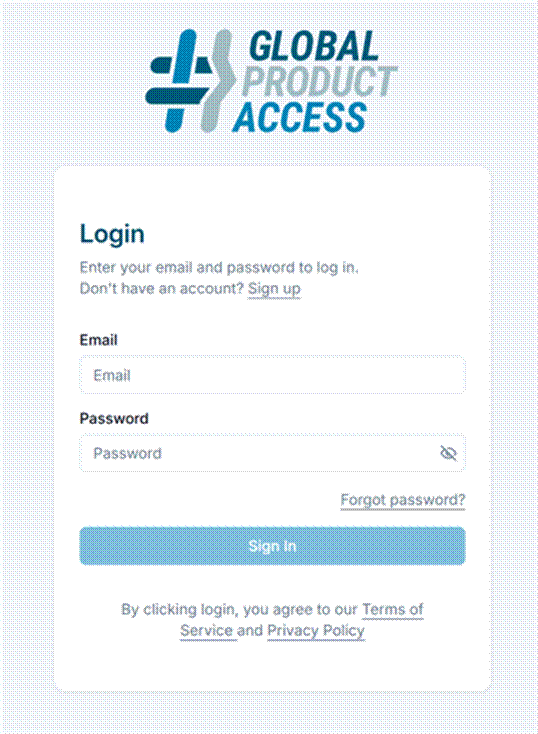
Registration and First Login
How to get access to Global Product Access and log in for the first time.
- Create your account using your email address on Global Product Access — either through self-registration at the login page, or via a service provider who will register on your behalf or provide you with a unique registration link.
- Direct account with Loren Data: https://globalproductaccess.com
- Through a reseller: https://[yournetwork].globalproductaccess.com/
- You will receive a welcome email containing your temporary password and a link to set your permanent password. Click the link and follow the prompts to create your new password.
- Return to the Global Product Access login page, enter your email address and new password, and click Log In.
- Minimum 8 alphanumeric characters
- Both uppercase and lowercase letters
- At least one number (0–9)
- At least one special character (e.g., !, $, %, &, *, _)
Tip If the welcome email does not arrive within a few minutes, check your spam or junk folder before contacting support. |
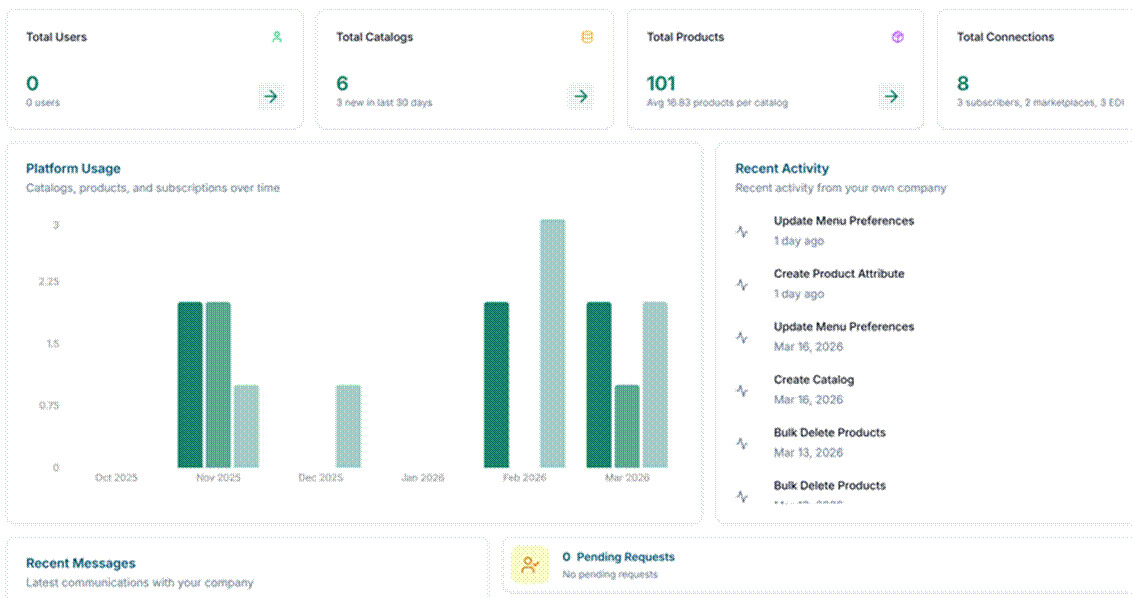
Dashboard Overview
After logging in, you will land on your Dashboard. From here, you can monitor your subscriptions, review requests, and track data activity. Use the main menu to navigate to other areas of the platform.
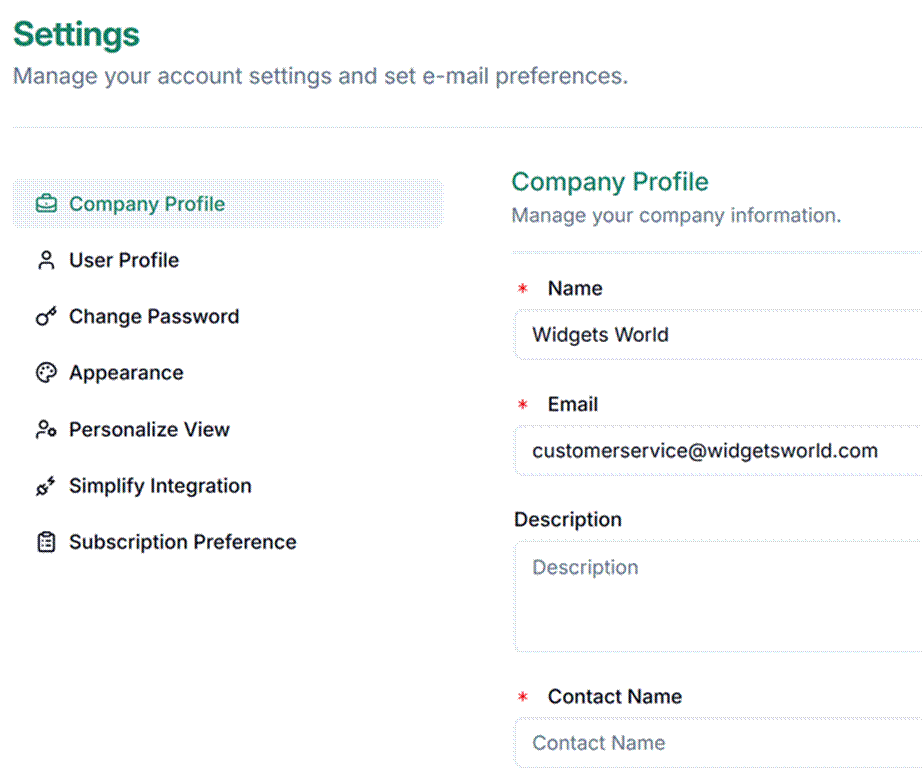
Settings
Access Settings from the main navigation menu. The table below describes each available setting and who can configure it.
Setting | Description |
Company Profile (Admin only) | Enter your company’s name, address, contact details, and logo. This information is visible to publishers on any public catalog interactions. Keep this accurate before requesting subscriptions. |
User Profile | Update your account display name and email address. |
Change Password | Update your current account password at any time. |
Appearance | Choose your preferred font style and toggle between light and dark display modes. |
Personalize View | Global Product Access supports both subscribing to catalogs and publishing your own. If you only subscribe, use this setting to hide publisher-related menu sections and simplify your navigation. |
Simplify Integration | Enables bi-directional data connectivity between Global Product Access and Simplify. Refer to the separate Simplify Connectivity knowledge base article for full setup instructions. |
Subscription Preferences | Define how you want to receive catalog data from publishers — including delivery format (JSON, XML, EDI) and webhook endpoint configuration. Refer to the separate Subscription Preferences Guide for full setup instructions. |
Important Configure your Subscription Preferences before accepting any catalog subscriptions. This ensures that catalog data is delivered to your systems in the correct format as soon as a subscription is activated. |
How to Receive Data
As a subscriber, you choose how catalog data is delivered to your systems. Your preferred delivery method is configured in Settings → Subscription Preferences. Three delivery options are available.
Method | Type | Best For |
API (Webhook) | Real-time | Fully automated, real-time product data with no manual steps. |
EDI | Batched | Existing EDI workflows and standard B2B trading channels. |
Custom Feed | On request | Any format not covered by API or EDI. Contact your sales representative. |
API (Webhook)
The API option connects your internal systems directly to the Global Product Access network via a webhook endpoint that you provide. Whenever a publisher updates a product in a catalog you are subscribed to, the update is pushed to your webhook automatically and in real time — no polling or scheduled imports required.
- Catalog data can be delivered in JSON or XML format.
- Updates are delivered immediately as they are made by the publisher.
- Configure your webhook URL in Settings → Subscription Preferences.
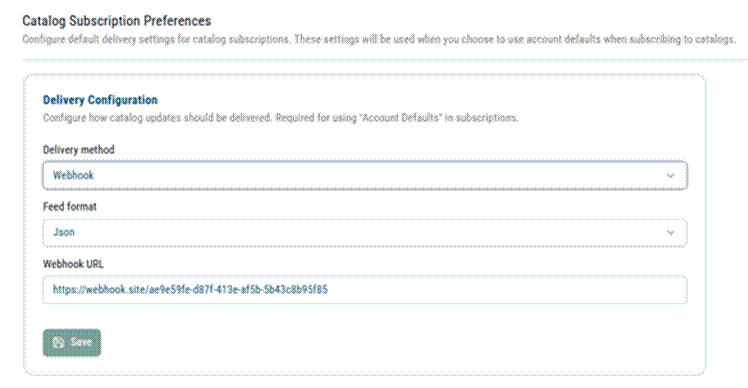
Best for subscribers who want fully automated, real-time product data in their internal systems with no manual intervention.
EDI
The EDI option delivers catalog updates as batched 832 (Price/Sales Catalog) or PRICAT EDI documents. Updates are queued and sent through the ECGrid VAN to your standard EDI receiving channels or posted to a custom endpoint URL of your choice.
- Compatible with existing EDI infrastructure — no new integration work required for established EDI trading partners.
- Supports delivery to standard ECGrid EDI IDs or a custom HTTP endpoint.
- Delivery is batched, not real-time — factor this into your data freshness expectations.
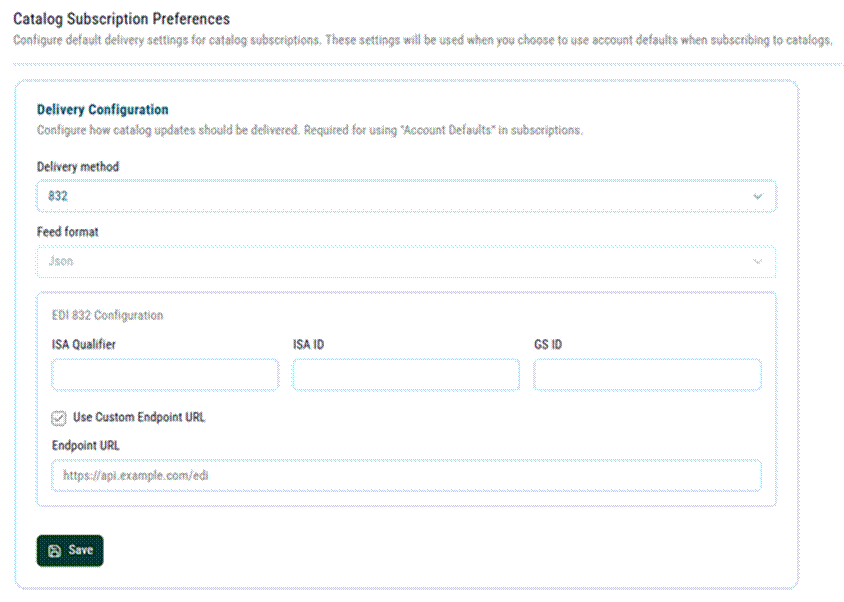
Best for subscribers with existing EDI workflows who want to receive catalog data through the same channels as other B2B transactions.
Custom / Transformation Engine
For subscribers who require a data format or delivery method not covered by the API or EDI options, Global Product Access includes a full any-to-any transformation engine that can be configured to produce virtually any output format or feed structure.
Note Custom transformation feeds are configured on request. Contact your Global Product Access sales representative to discuss your requirements and get this option set up for your account. |
Catalog Subscriptions
A catalog is a structured collection of products that a supplier (publisher) shares with retailers (subscribers). Access is always controlled by the publisher — subscriptions require approval and are never granted automatically. There are two ways to establish a catalog subscription:
- You request access: Search for a public catalog and send a subscription request to the publisher.
- Publisher initiates: A publisher sends you a direct invitation to subscribe to their catalog.
Discovering and Requesting a Public Catalog
Publishers can choose to list their catalogs as public, making them discoverable by any company on the Global Product Access network. Browsing public catalogs is a useful way to find new product sources, expand your assortment, or identify potential cross-sell opportunities for your e-commerce channels.
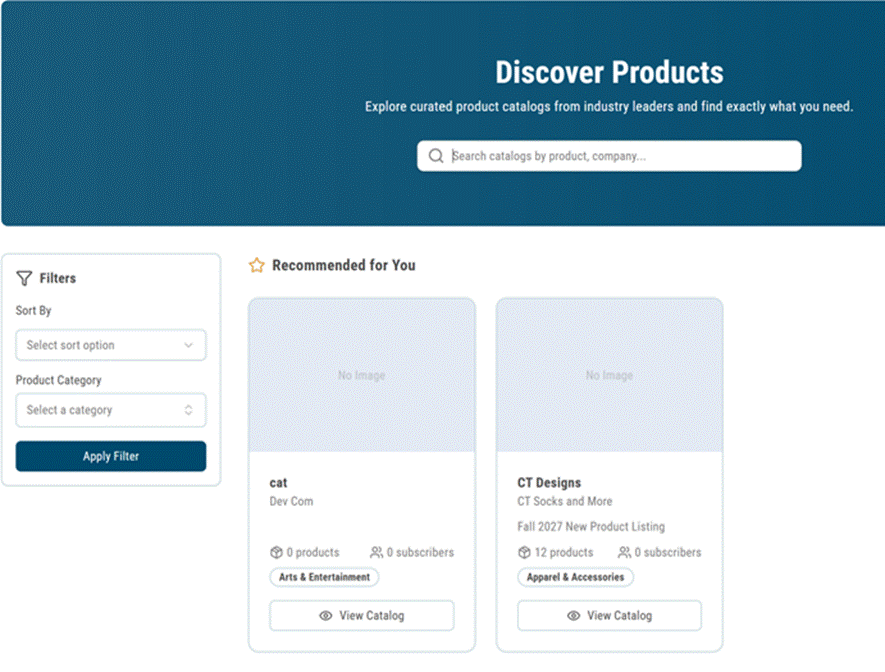
- Click Discover Products in the top navigation bar or navigate to My Subscriptions → Discover Products in the left menu.
- Use the search bar to find catalogs by product type, category, or company name.
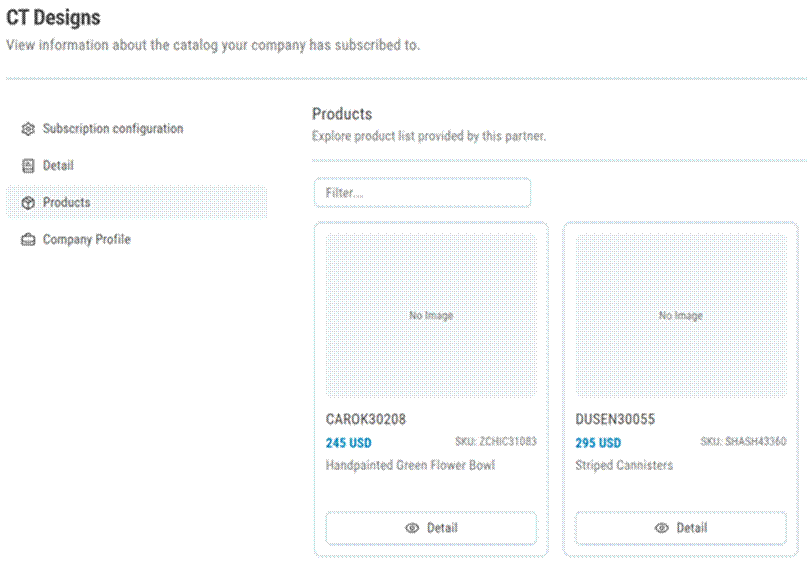
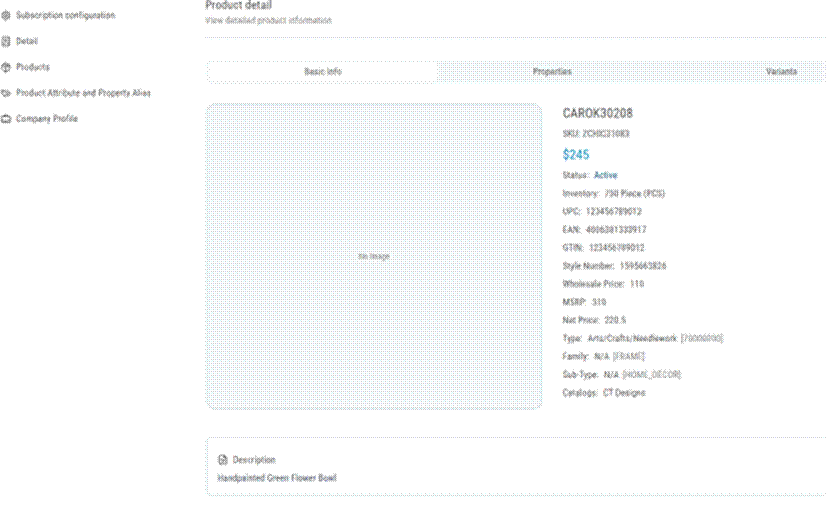
- Click View Catalog on any result to browse the products and company information for that catalog. Note that publishers control whether prices are displayed on public catalogs — pricing may not always be visible at this stage.
- If you want to subscribe, click the Request Subscription button. Your request will be sent to the publisher for review.
- Once the publisher approves your request, the subscription becomes active and catalog data will begin flowing to your systems according to your configured delivery preferences.
Note The publisher must explicitly approve your subscription request before any catalog data is shared with you. Approval timelines vary by publisher. |
Responding to a Publisher Invitation
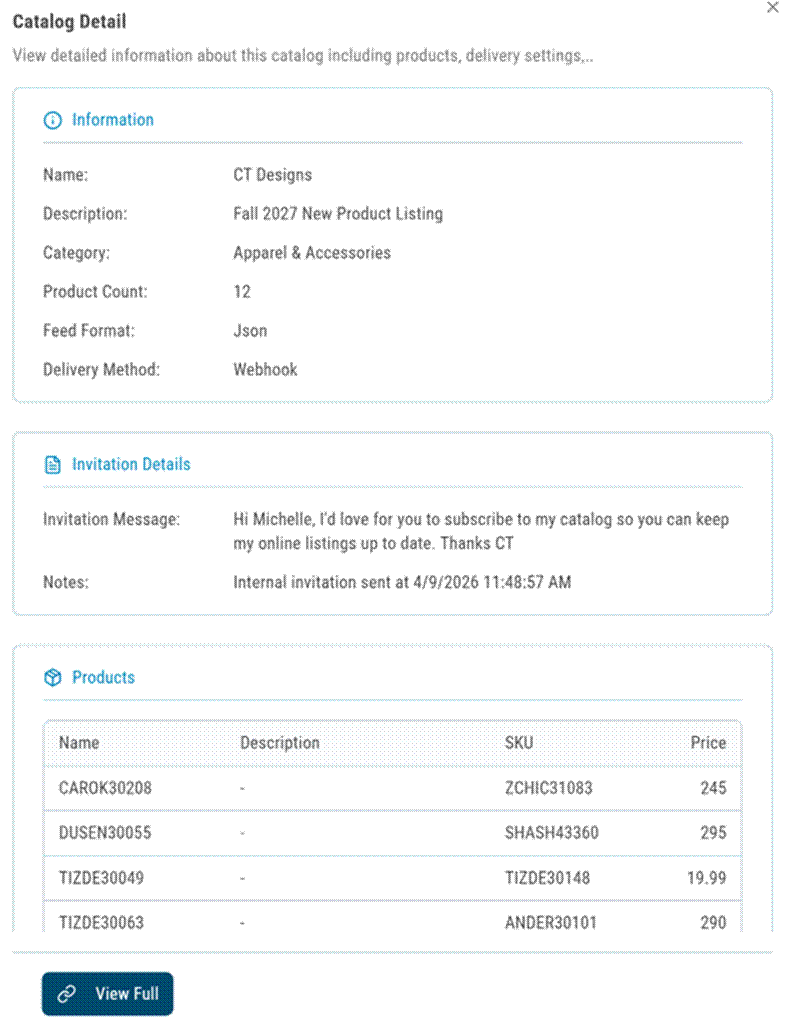
A publisher may proactively send your company an invitation to subscribe to their catalog directly through Global Product Access. This is common when a publisher wants to set you up as a trading partner or when you have an existing commercial relationship outside the platform.
- When a publisher sends a subscription invitation, your Company Administrator will receive an email notification. A notification will also appear inside Global Product Access.
- Log in and navigate to the notification or to My Subscriptions to review the pending invitation.
- If you want to accept the invitation, configure your Subscription Feed Preferences to specify how you want to receive the catalog data (API/webhook, EDI, or custom). Refer to the separate Subscription Preferences Guide for detailed setup instructions.
- Once your preferences are set, accept the invitation. The subscription becomes active and data delivery begins according to your configured preferences.
- If you do not want to receive the catalog, you can ignore the invitation or click the red X to formally decline it.
Important Make sure your Subscription Preferences are configured before accepting any invitation. Accepting without setting up your delivery preferences may result in catalog data not reaching your internal systems correctly. |
Was this article helpful?
That’s Great!
Thank you for your feedback
Sorry! We couldn't be helpful
Thank you for your feedback
Feedback sent
We appreciate your effort and will try to fix the article