What is a Document Structure?
Definition
A Document Structure is a schema that tells the translation engine exactly how to read or write a file. It defines what constitutes each record type in a document — such as header, detail, and trailer records — and how to tell them apart.
It captures the full layout of a file, including:
Components
- Field Layout — For fixed-width files: start position and length of every field. For delimited files: delimiter character, field sequence, and optional qualifier. For XML/JSON: element path and expected data type.
- Data Types and Formats — Character, numeric, date formats (e.g., YYYYMMDD or MMDDYY), packed decimal, signed/unsigned values.
- Conditional Logic — Which records are mandatory, which are optional, and how many times a detail record can repeat.
Where to Find It
Navigate to: Advance Config → Document Types → open a Document Type → Structure tab.
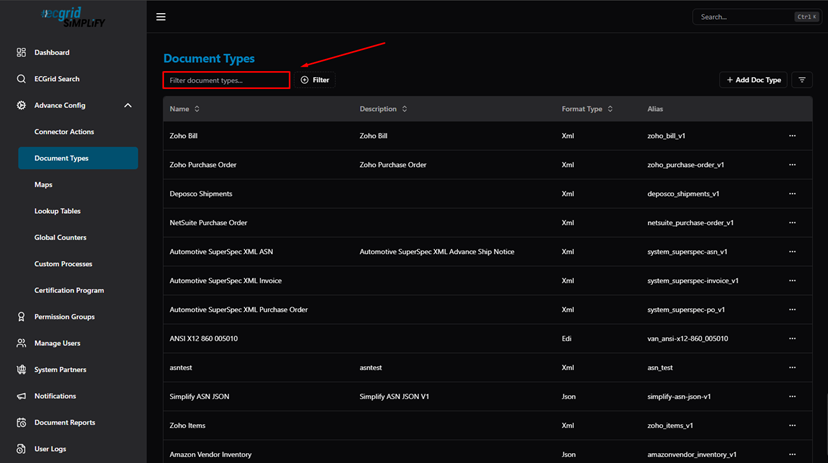
Document Types — list view (Name, Description, Format Type, Alias)
Click ··· on a Document Type and select Config, then go to the Structure tab:
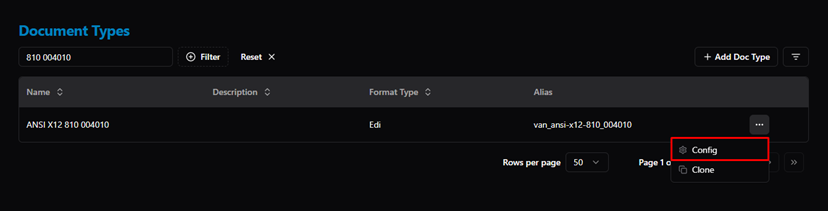
Document Type — actions menu (Config / Clone)
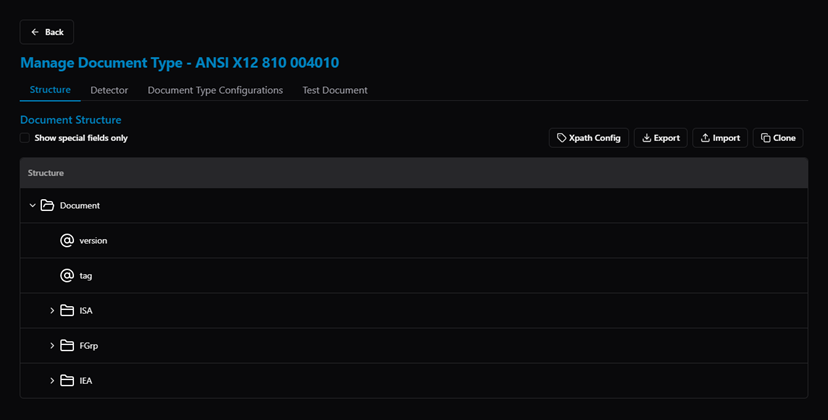
Structure tab — full document structure tree (Document, ISA, FGrp, IEA)
Enable "Show special fields only" to highlight fields marked as special (e.g., Integration Key fields):
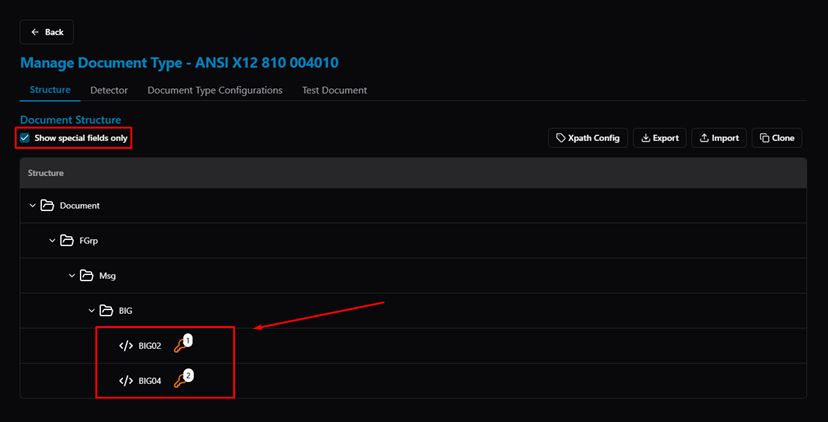
Structure tab — Show special fields only (key icon marks special fields like BIG02, BIG04)
Use the action buttons in the top-right to manage the structure:
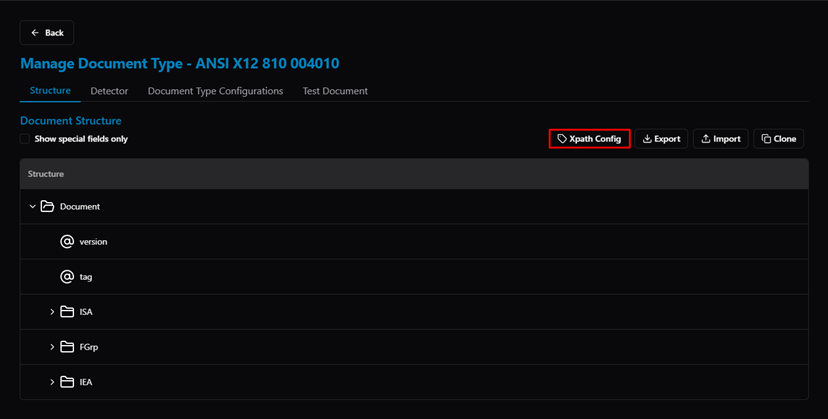
Structure tab — Xpath Config button (configure Partner XPath, Split XPath, etc.)
Was this article helpful?
That’s Great!
Thank you for your feedback
Sorry! We couldn't be helpful
Thank you for your feedback
Feedback sent
We appreciate your effort and will try to fix the article