What is a Validation Rule?
Definition
Validation rules let map builders enforce data quality on a field without changing the field's transformation logic. A rule can be set on the source side of a link, the destination side, or both. Each rule is scoped to one of four levels, so system admins and resellers can establish baseline requirements while customers layer on rules specific to their own account or an individual trading partner. Validation runs at a fixed point in the processing sequence regardless of which level set the rule. See Processing Order below.
Validation rules can be set at different levels — Global, Reseller, Partners, Customer, or Custom partners — giving each level the ability to override or supplement rules set above it.
Processing Order
Within a single link, Simplify processes a field in this order:
Step | Stage | Description |
1 | Source Validation | Rules on the source field are evaluated before any transformation runs. |
2 | Map Data | The field's mapping logic executes (direct copy, lookup, formula, etc.). |
3 | Advanced C# (if present) | Any custom C# script attached to the link runs after the base map logic. |
4 | Destination Validation | Rules on the destination field are evaluated last, after all transformation is complete. |
A failed source validation stops the field before mapping logic runs. A failed destination validation stops the field after mapping and any Advanced C# have executed. Either failure causes the map to fail that field and halt processing rather than complete the document.
Validation Levels
Validation rules can be set at five levels. Where more than one level defines a rule for the same field, the map applies the hierarchy based on most specific taking priority; the levels differ in who can set them and how broadly they apply.
For example, if a field has two rules, one global and one customer, the customer level rule will take precedence over the global rule.
Level | Set By | Applies To |
Global | System administrators | All accounts using that document definition, across every reseller and customer. |
Reseller | Reseller administrators | All subaccounts under that reseller that use the document definition. |
Partner | System or Reseller administrators | A system or reseller trading partner specific map. |
Customer | The customer (end user) | All of that customer's trading partners on the document definition. |
Custom Partner | The customer (end user) | Only the specific trading partner the rule is configured against. |
Where to Find It
Validation Rules are configured directly on map links inside a Map Configuration. Navigate to: Advance Config → Maps → click ··· → Config on a map:
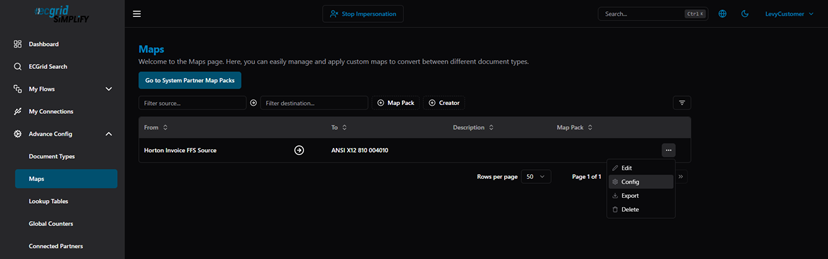
Maps list — ··· actions menu (Edit / Config / Export / Delete)
In the Map Configuration, right-click (or click the context menu) on any link row to see Set Source Validation and Set Destination Validation:
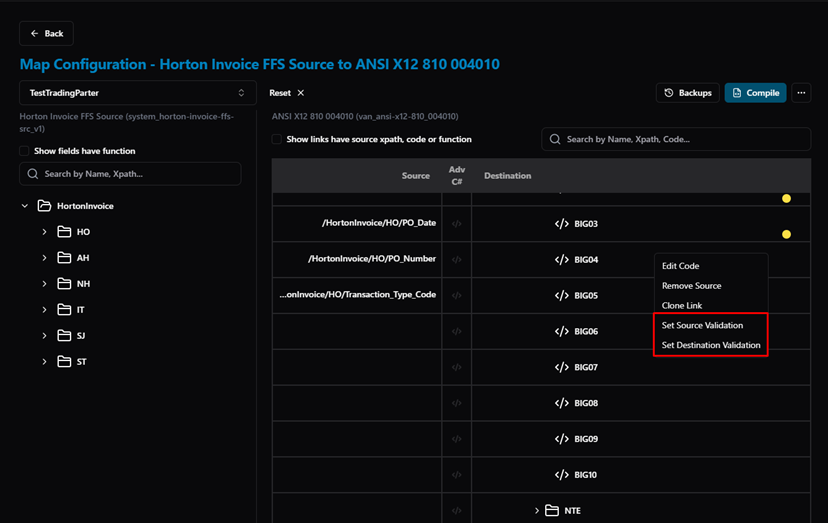
Map Configuration — link context menu with Set Source Validation and Set Destination Validation options
How to Add a Validation Rule
The Add Validation dialog shows the field path and document type. Select the Customer tab to add a rule for your own account. Choose a Rule Type:
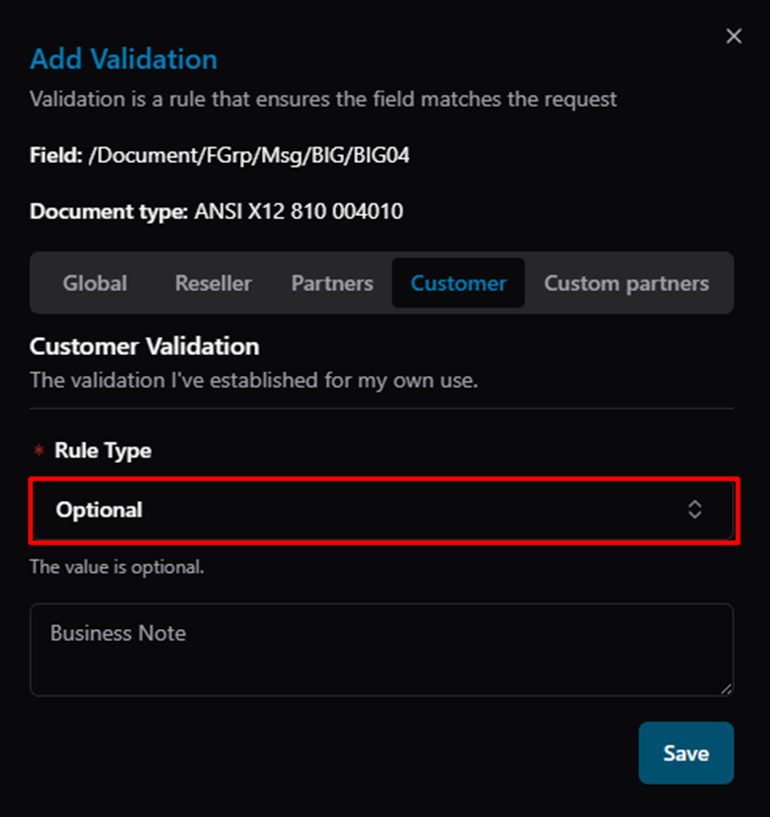
Add Validation dialog — Customer tab, Rule Type: Optional (value is optional)
Search for a rule type by name to see available options and their descriptions:
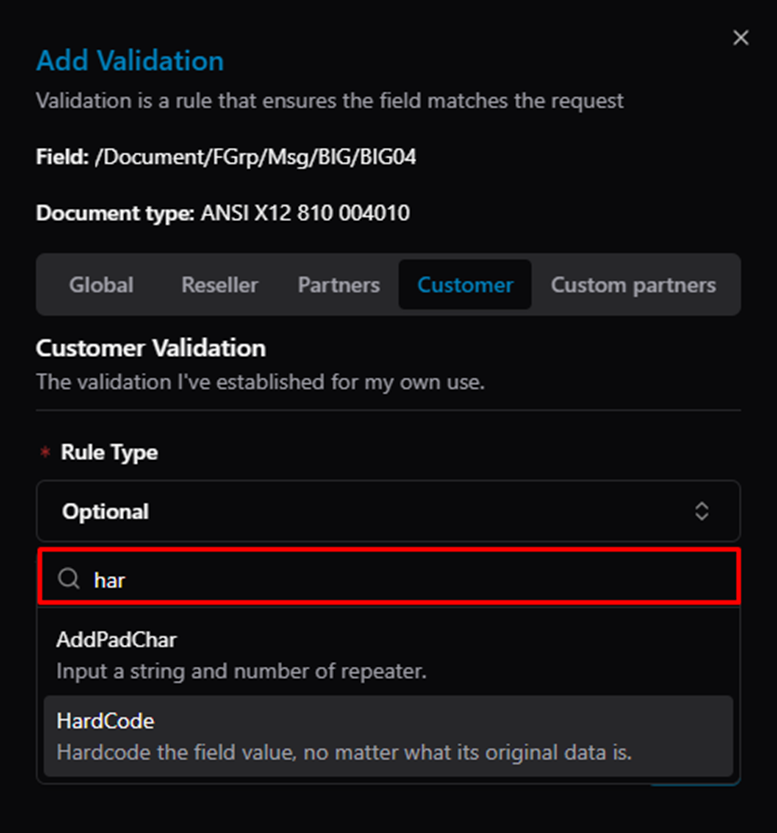
Add Validation — search "har" showing AddPadChar and HardCode rule types with descriptions
After selecting a rule type, configure its parameters in the Rule Configuration section:
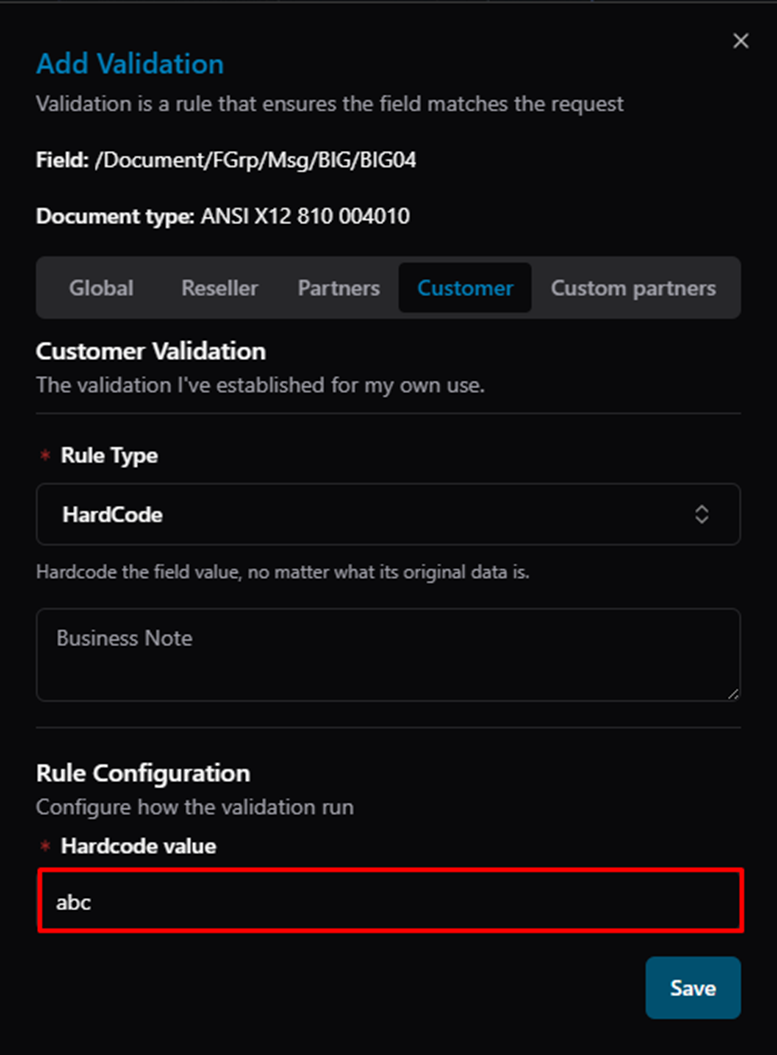
Add Validation — HardCode rule selected with "Hardcode value" field showing "abc"
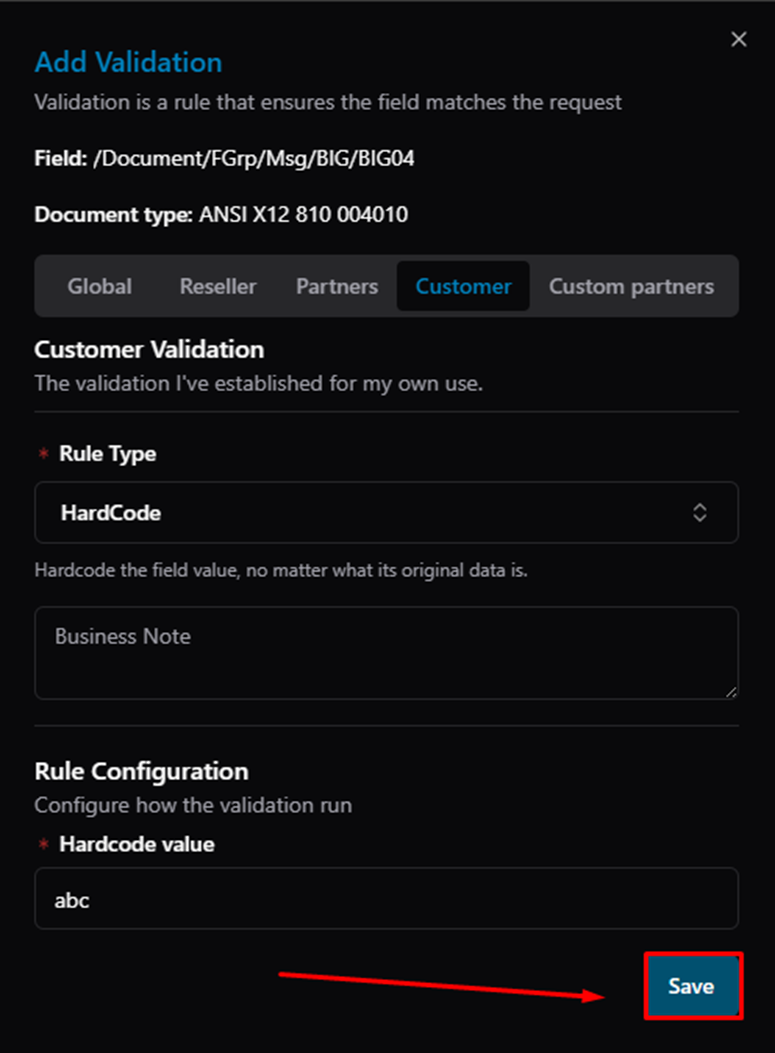
Add Validation — click Save to apply the rule
Once saved, a yellow dot (●) appears on the link row in the map to indicate a validation rule is active:
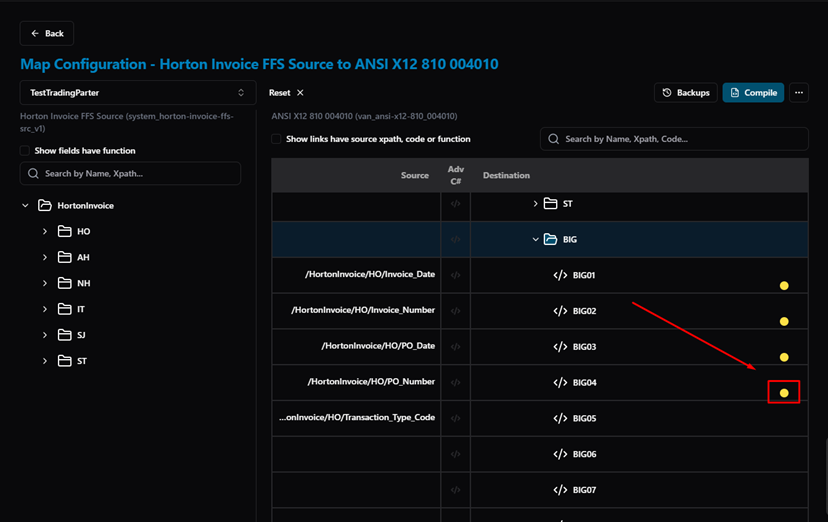
Map Configuration — BIG04 row with yellow dot indicating an active validation rule
Note
This document covers how to add a Validation Rule to a map link. For a full list of available rule types and their configurations, refer to the FreshDesk article below. |
Related Articles
For more details, refer to the following articles in the Knowledge Center:
Was this article helpful?
That’s Great!
Thank you for your feedback
Sorry! We couldn't be helpful
Thank you for your feedback
Feedback sent
We appreciate your effort and will try to fix the article