Welcome to your Developer Program! Once you have successfully registered, you should have received an email providing you with login information to your portal site. If you have not received this email, please check your Other/Spam/Junk folders. If you are unable to find your login information, please reach out to developersupport@ecgrid.com for assistance.
Depending on the tier you chose at registration, here are the the allowances based on your chosen tier:
| ECGrid Simplify Demo | ECGrid Simplify Developer |
Timeframe | No time limit | 30-day free trial |
Connectivity included | UI upload/download | Windows Service Client |
KCs / documents | 100 documents | 500 documents |
Mailboxes included | N/A | N/A |
With the Developer program, you are able to upgrade to another tier at any point, through self-service. Go to your name in the upper right hand corner of your page and go to Profile. From this page, you can manage your subscription, make payments, or upgrade to another tier for additional volumes and allowances.
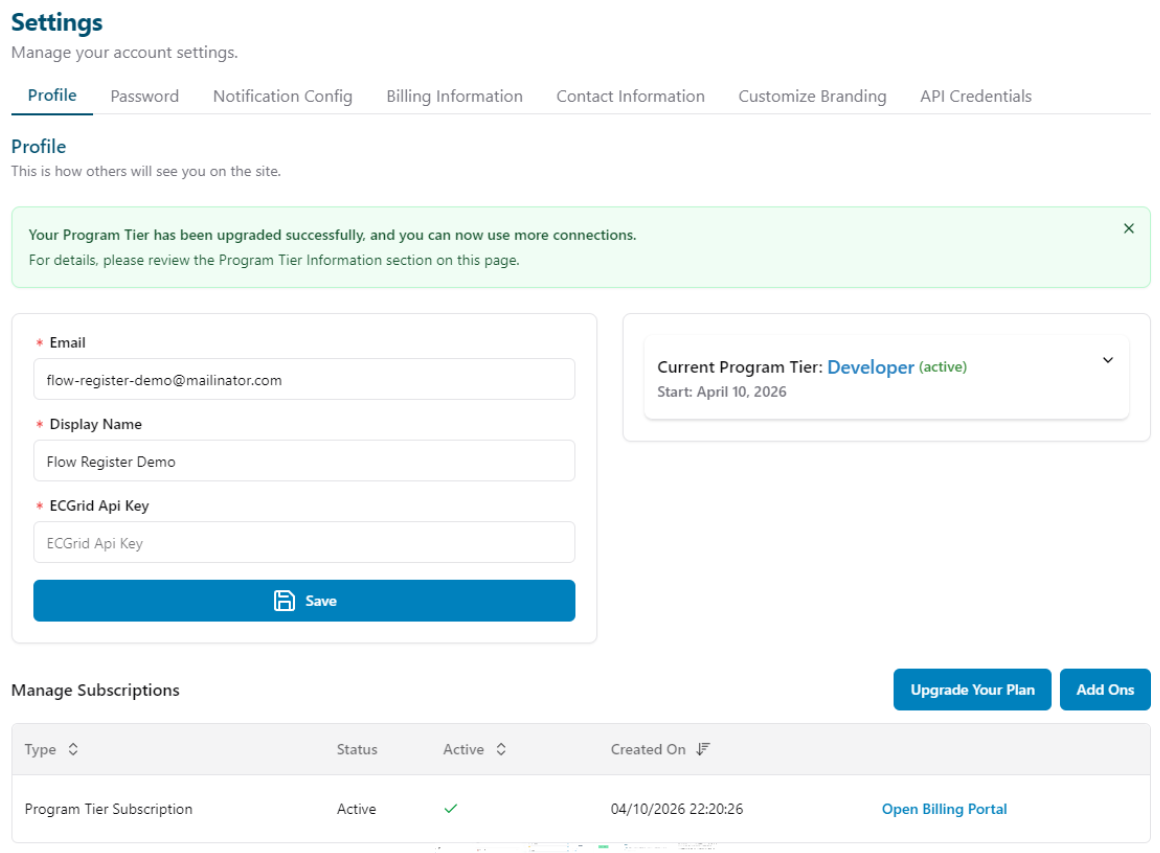
First Steps
Setting up a Connection to ECGrid Simplify
To begin using your Developer program, you will need to set up a connection to ECGrid Simplify. Go to My Connections on the left side navigation panel and then click Add Connection.
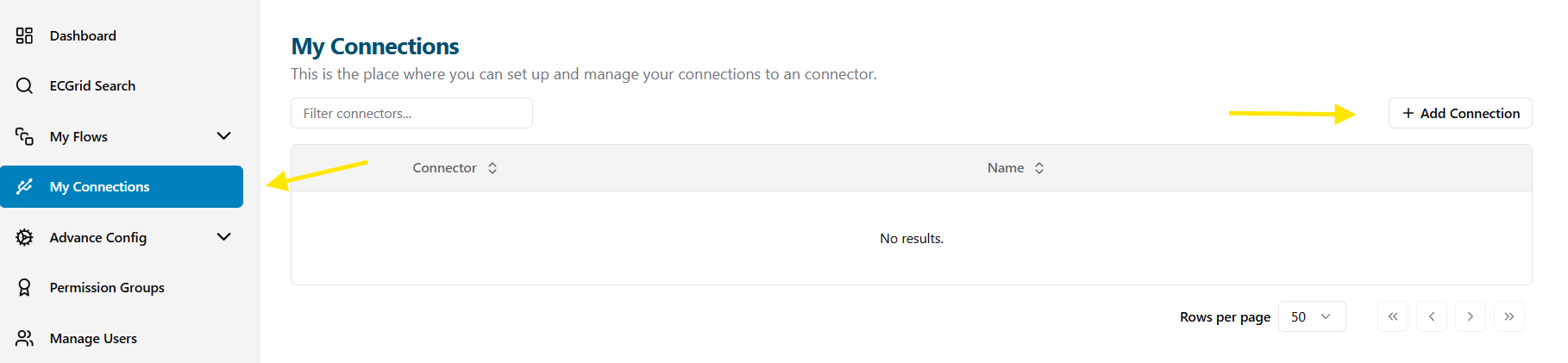
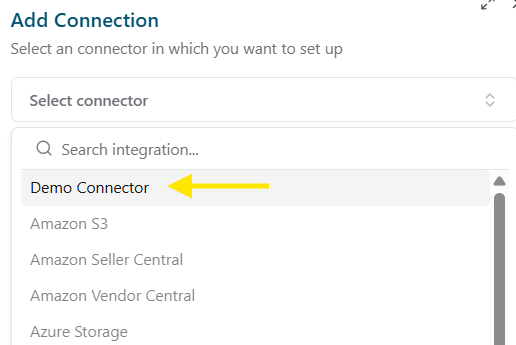
For Demo Program users, you will see Demo Connector available. The Demo Connector will allow you to upload and download directly to/from your ECGrid portal. Select this connection and add a name for the connection:
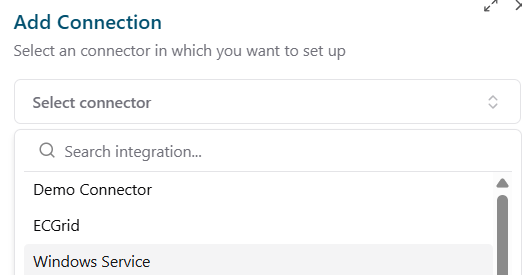
Developer Program users will also see the options for the ECGrid and Windows Service Connectors:
Once you've configured your connection to ECGrid, you will need to configure a Flow. To set up a flow, click on Flows from your left side navigation panel and then Add Flow:

From here you will need to configure the flow by adding a trigger and an action. For more information on how to set up a flow, click on one of the following links for full documentation:
Tutorial: Create a New Flow
Article: Set up a Basic Flow
Documentation and Support
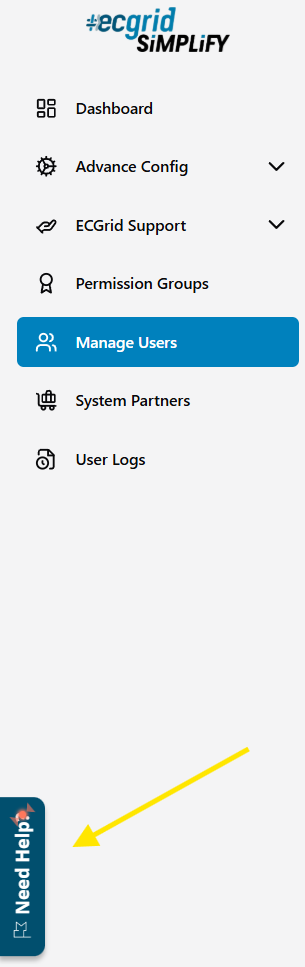
You can find documentation under the Need Help tab on the left side navigation panel. You also have access to our full Training tutorial on the top of your dashboard. If you require Support, please reach out to developersupport@ecgrid.com.

Was this article helpful?
That’s Great!
Thank you for your feedback
Sorry! We couldn't be helpful
Thank you for your feedback
Feedback sent
We appreciate your effort and will try to fix the article