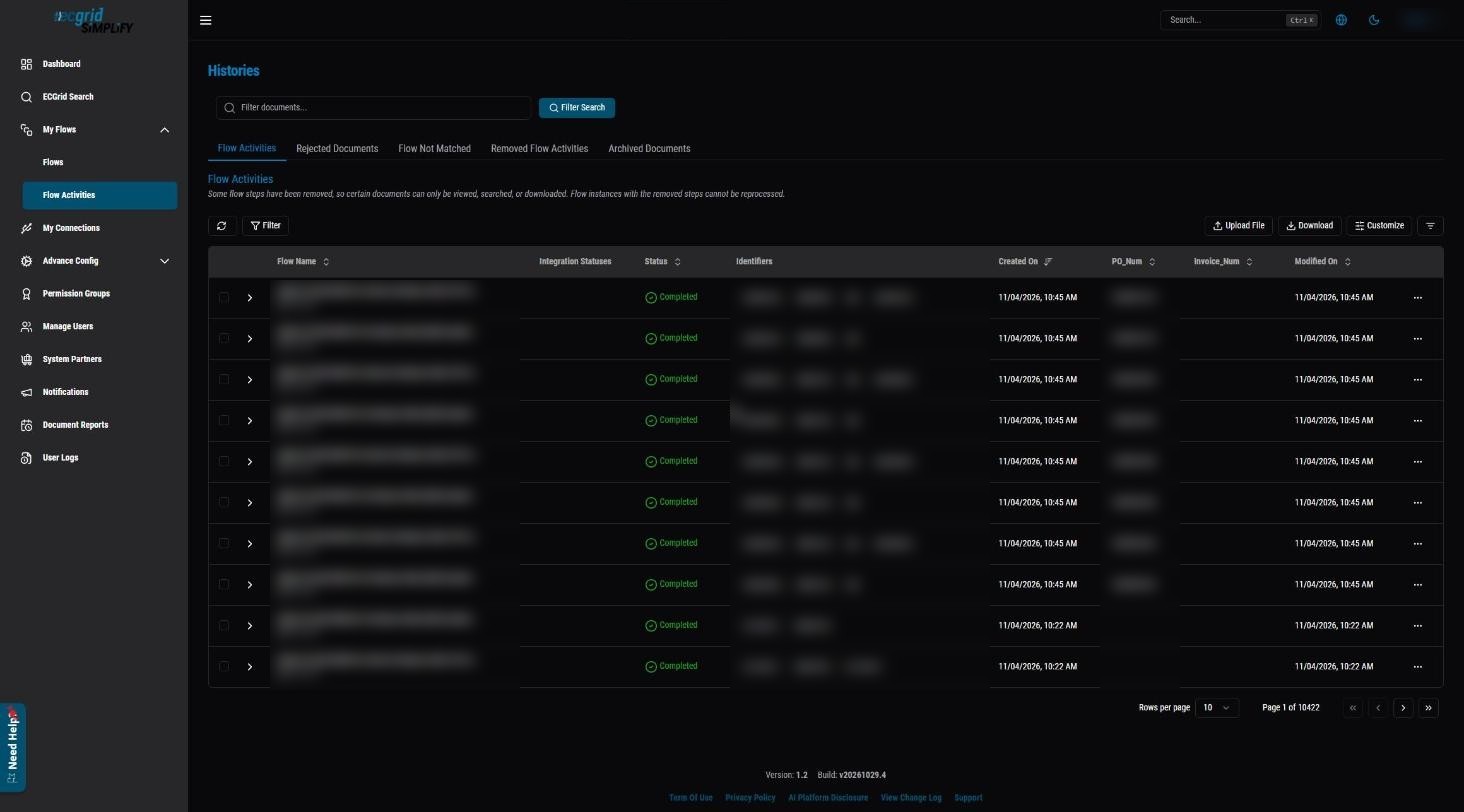
An Extract Value XPath marks a field in a Document Type whose value Simplify pulls out of every document it processes, for example the PO number, invoice number or ASN number. The extracted values are shown as Identifiers in Histories > Flow Activities, so you and your users can find a document quickly by searching for that number instead of opening files one by one.
Note: Like other Document Type settings, Extract Value XPaths are configured at the reseller account level, on the Document Type itself, and apply to all customer accounts that use it.
Which fields to choose
- Pick the values your users search for most: PO number, invoice number, ASN/shipment number, order number, BOL, etc.
- You can set more than one Extract Value XPath on the same Document Type.
- Choose fields that appear once per document (header level) where possible, so each document gets a clear identifier.
Step 1 - Open the Document Type structure
Go to Advance Config > Document Types, click ... on the Document Type and select Config. The Structure tab opens. Expand the nodes until you see the field you want.
Step 2 - Set the field as an Extract Value XPath
Click ... on the field, then XPath Config > Set Extract Value XPath.
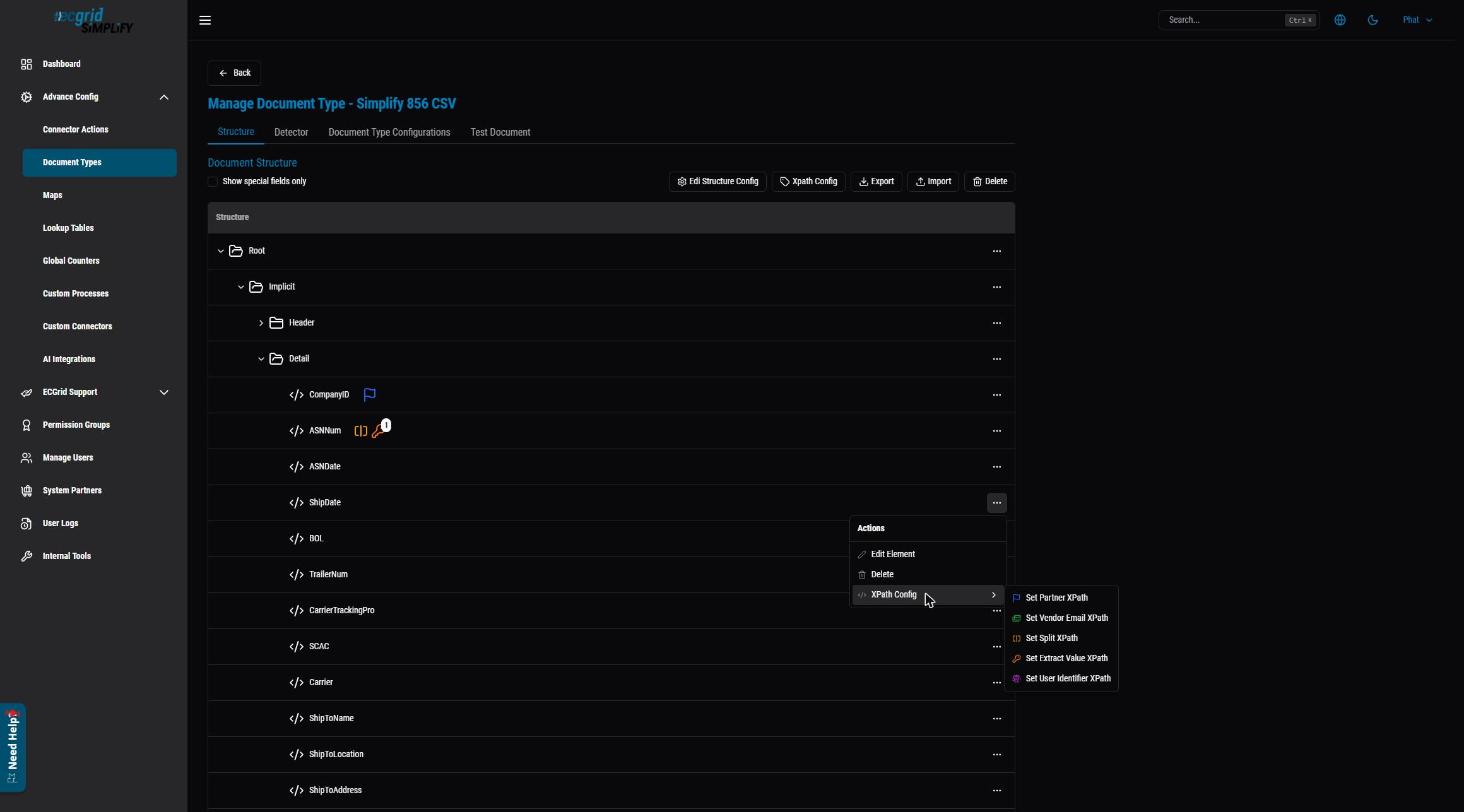
The field is now marked with an orange key icon. The number on the icon shows its order among the Extract Value XPaths. Other special XPaths have their own icons, for example the blue flag for the Partner XPath.

A "Structure changed" banner appears. Click Save Changes to apply it.
To remove it later, use XPath Config > Remove Extract Value XPath on the same field and save.
Step 3 - Review all special XPaths in one place
Click the Xpath Config button above the structure to open Special Xpath Configuration. Expand Extract Value XPaths to see every extracted field. Use the arrows to change their order, then click Save.
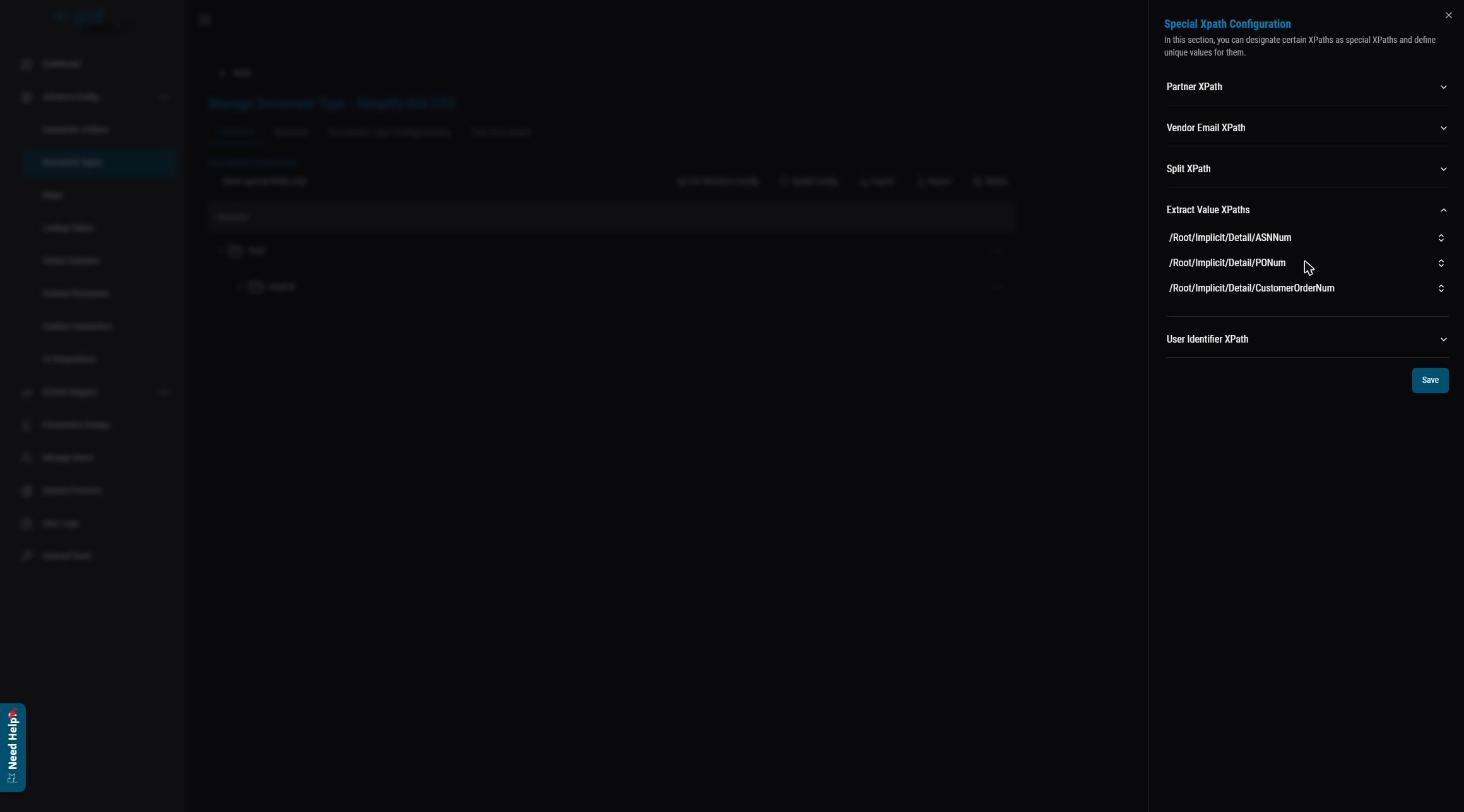
The same panel also shows the Partner XPath, Vendor Email XPath, Split XPath and User Identifier XPath.
Step 4 - Find documents by their extracted values
For documents processed after the change, the extracted values appear in the Identifiers column of Histories > Flow Activities. Type a value (for example a PO number) in Filter documents... and click Filter Search to find the document.
Related articles
Was this article helpful?
That’s Great!
Thank you for your feedback
Sorry! We couldn't be helpful
Thank you for your feedback
Feedback sent
We appreciate your effort and will try to fix the article