A Document Detector tells Simplify how to recognize an incoming file and match it to the right Document Type. When a file arrives, Simplify checks it against the detectors and processes it with the Document Type whose detector matches.
When do you need one?
- Yes - if the Document Type is used as an input, i.e. Simplify receives files of this type (SFTP/FTP, ECGrid VAN, Windows Service, etc.).
- No - if the Document Type is only used as an output (the destination of a map), for example a flat file you generate and send to a partner or your ERP.
Note: Detectors are part of the Document Type, so they are configured at the reseller account level.
Where to find it
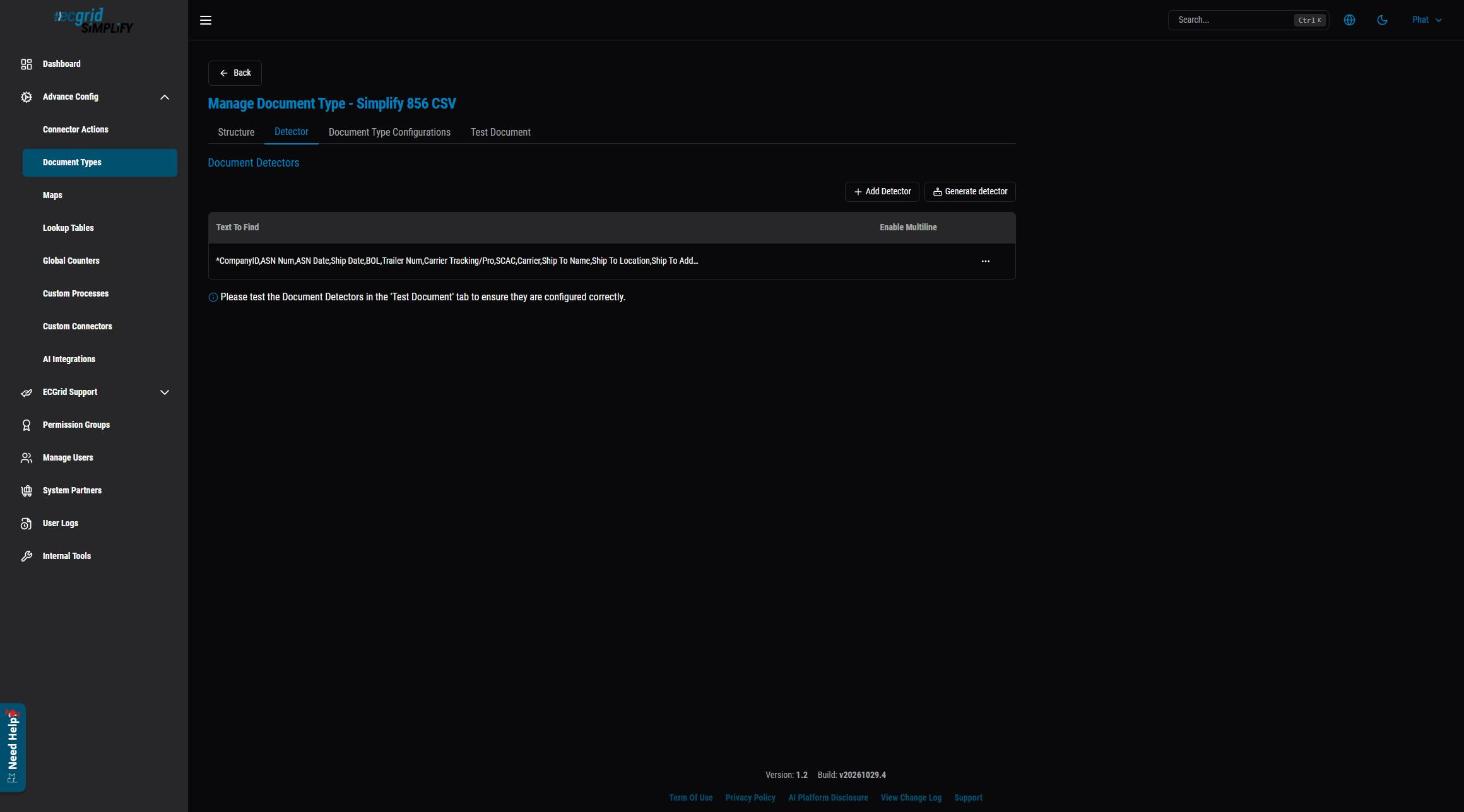
Go to Advance Config > Document Types, click ... on the Document Type, select Config, and open the Detector tab. You can add a detector manually (Add Detector) or let AI build one from a sample file (Generate detector).
How detection works by format
| Format | Detector type | What you enter |
|---|---|---|
| XML | XPath | An XPath that always exists in this document, and optionally the Xpath Value it must contain. |
| Delimited (CSV, pipe, tab...), Fixed-width, ANSI X12, EDIFACT | Regular expression | A Text To Find pattern (regex) that matches something unique in the file, such as the header row or the GS segment. |
Option 1 - Generate the detector with AI (recommended)
- On the Detector tab, click Generate detector.
- Upload one sample file of this Document Type.
- Optionally add Additional context describing what makes this format unique, for example "The first line always starts with ISA and GS01 = PO" or "Match the header row only, not the data rows". Click Samples to see an example prompt.
- Click Generate.

- Review the generated Text To Find. You can edit it before saving.
- Click Test Detector. When it says "Detector matched successfully", click Save.

AI can make mistakes. Make sure the pattern matches something that is the same in every file of this type (like the header row or segment IDs), not values that change from file to file (like order numbers or dates).
Option 2 - Add the detector manually
Delimited, Fixed-width, X12, EDIFACT: click Add Detector, enter the regular expression in Text To Find, tick Enable Multiline if needed, and click Save.

XML: click Add Detector, enter the XPath (and optionally an Xpath Value), and click Save.

Examples
- CSV with a header row - match the start of the header row:
^CompanyID,ASN Num,ASN Date,Ship Date,BOL
The^means "at the start". Use the column names, never data values. - ANSI X12 - match the GS segment's functional ID and version. For an 824 v004050:
^([\s\S]{105,106})GS\*AG.{26,52}004050
This skips the fixed-length ISA segment (about 106 characters), then requiresGS*AG(AG = Application Advice) followed by the version004050. Note that*must be escaped as\*. - XML - an element that only this document has:
XPath/ChangeOrderMessage/ChangeOrder - Fixed-width - match a record code or fixed text at a known position, e.g.
^HDRif every file starts with a header record "HDR".
Enable Multiline: when ticked, ^ and $ match at the start and end of each line instead of only the start and end of the whole file. Use it when the text you want to match is not on the first line.
Tips
- Make the detector specific enough that it doesn't also match other Document Types. For X12, include both the functional ID and the version.
- If two Document Types are very similar (for example two CSV layouts that share the first columns), match more of the header row so each detector is unique.
Test the detector
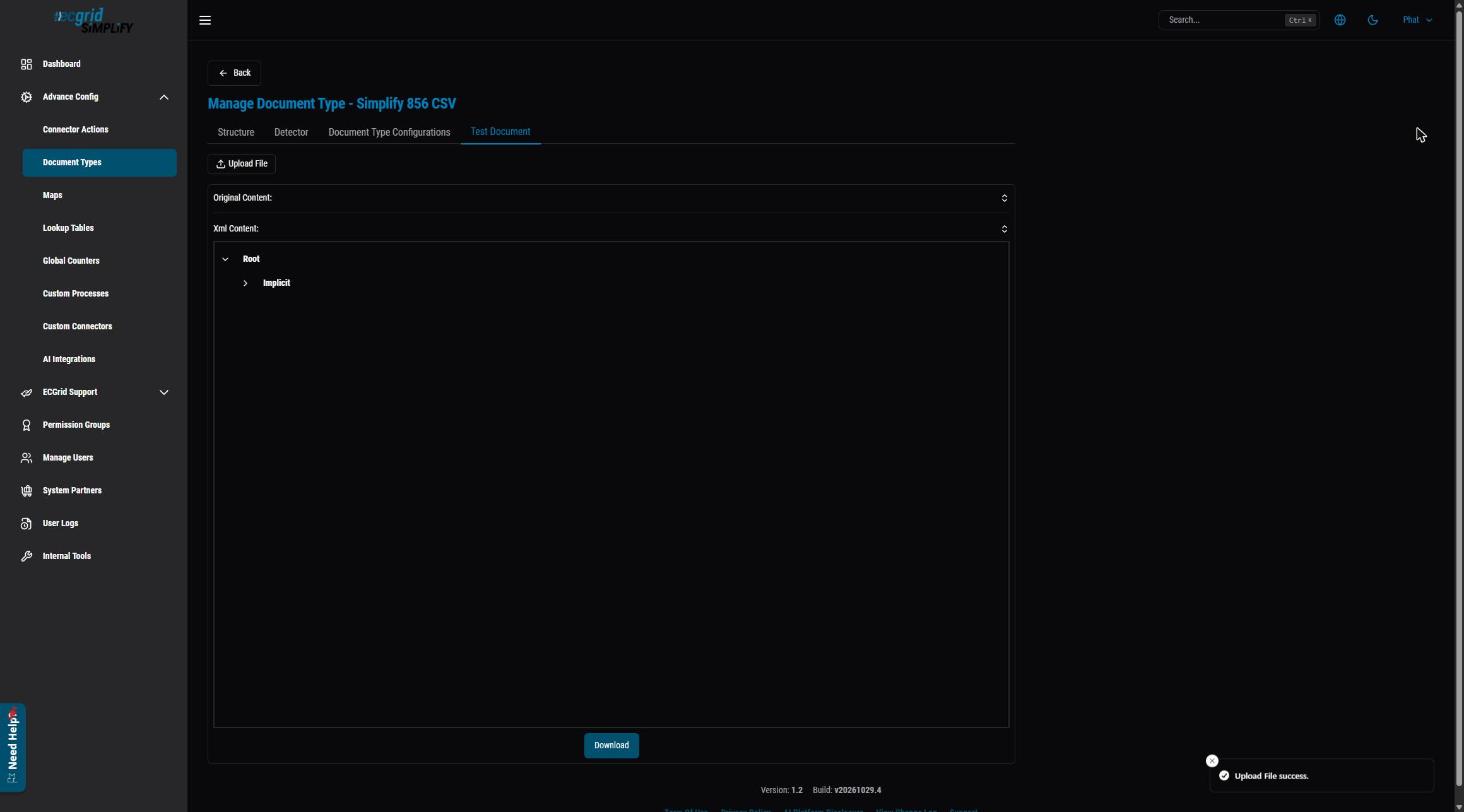
Always test before using the Document Type in a flow. Open the Test Document tab, click Upload File, keep Use Detector ticked, choose a real sample file and click Upload File.

If the detector matches, Simplify parses the file and shows the Original Content and the parsed Xml Content. If it doesn't match, review the pattern and test again.
Related articles
Was this article helpful?
That’s Great!
Thank you for your feedback
Sorry! We couldn't be helpful
Thank you for your feedback
Feedback sent
We appreciate your effort and will try to fix the article